MedicationVault.
A complete guide to tracking doses, setting reminders, and keeping someone in the loop if a dose goes missed — without any of your data ever leaving your phone.
Welcome
MedicationVault is a medication reminder and adherence tracker that runs entirely on your phone. There's no account to create, no cloud sync, and no server anywhere in the picture. Everything it knows about you and your medications is stored on this device, and stays there. It's completely private and secure, and your personal and medical data is always completely under your control.
It exists because most medication reminders are just notifications, and a notification is very easy to miss. It arrives while your hands are full, it sits quietly in the shade behind twelve other things, and by the time you see it the moment has gone. MedicationVault takes over the whole screen instead, the way an alarm clock does, and keeps going until you actually answer it.
This manual walks through every screen in the order you'll meet them: setting up, seeing what's due today, adding a medication, answering an alarm, and configuring the parts that matter. Use the menu on the left to jump straight to a topic, or read it end to end if you've just installed the app.
🔒 On-device only
The only way any data ever leaves your phone is if you perform an encrypted back up to your Google Drive or iCloud, so that you can import your data to a new phone. Even then your data stays encrypted and totally under your control: we can't see it, and it can't ever be sold or passed to any third party.
⏰ Reminders that get through
To make sure you never miss important medication, dose alarms take over the screen, through a locked phone, through Silent mode, and through Do Not Disturb.
👥 Someone else in the loop
If a dose goes missed, up to three people can be texted automatically, straight from your phone to theirs, so they can check in on you and make sure everything is OK.
MedicationVault is not medical advice. It reminds you about a schedule you have entered yourself, and it does the arithmetic on your supply. It cannot tell you whether a dose is right, whether two medications interact, or what to do if you miss one. Your pharmacist and your prescriber are the people for those questions.
Getting started
The first time you open MedicationVault, a short setup sheet appears with three steps: whether you us UK or US English, a little about you, and the permissions that make dose alarms work. None of it takes long, and all of it can be changed later from Settings.
Your first five minutes
If you want to be up and running before you read anything else, this is the whole thing:
- Choose your region. UK or US English. This also sets whether dates read day/month/year or month/day/year, (both can be changed later at any time).
- Fill in your details. Name, date of birth and any emergency notes.
- Grant the four permissions. Tap Allow All and say yes to each thing Android asks. This is the step that actually matters. Skip it and reminders may silently never appear.
- Add your first medication. Go to the Meds tab and tap Add Medication. Six short steps, and only the medication's name is required.
- Test the alarm. Go to Settings › Alarm volume and tap Test Alarm. It fires a real dose alarm right now so you can hear how loud it is, and make sure everything is working OK. This is worth doing before you need it rather than after.
- Check the Today tab. Everything due today is listed there, grouped by time. Tap Take Dose when you take one.
If that was a little too quick for you, the steps below will walk you through everything in much more detail.
1Which English?
The first card asks whether you'd like English (UK) or English (US). It changes the spelling used throughout the app, and it sets the default date format at the same time: UK gives you day/month/year, US gives you month/day/year. The two can be set independently afterwards from Settings › Display, so if you want US spelling with UK dates, that's fine.
2A little about you
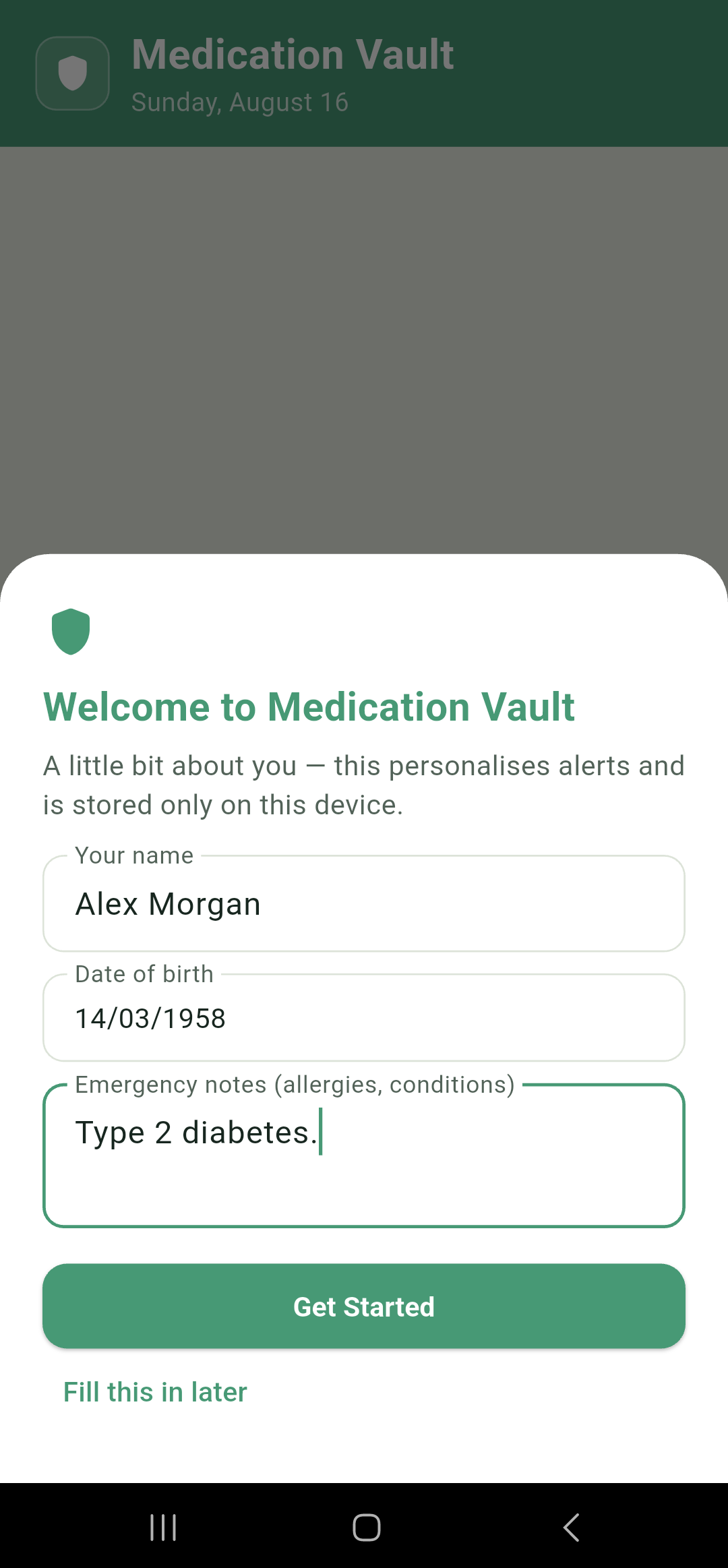
The second card asks for your name, your date of birth, and any emergency notes such as allergies or conditions.
Your name is used to personalise caregiver alerts, so it's worth filling in if you plan to use those.
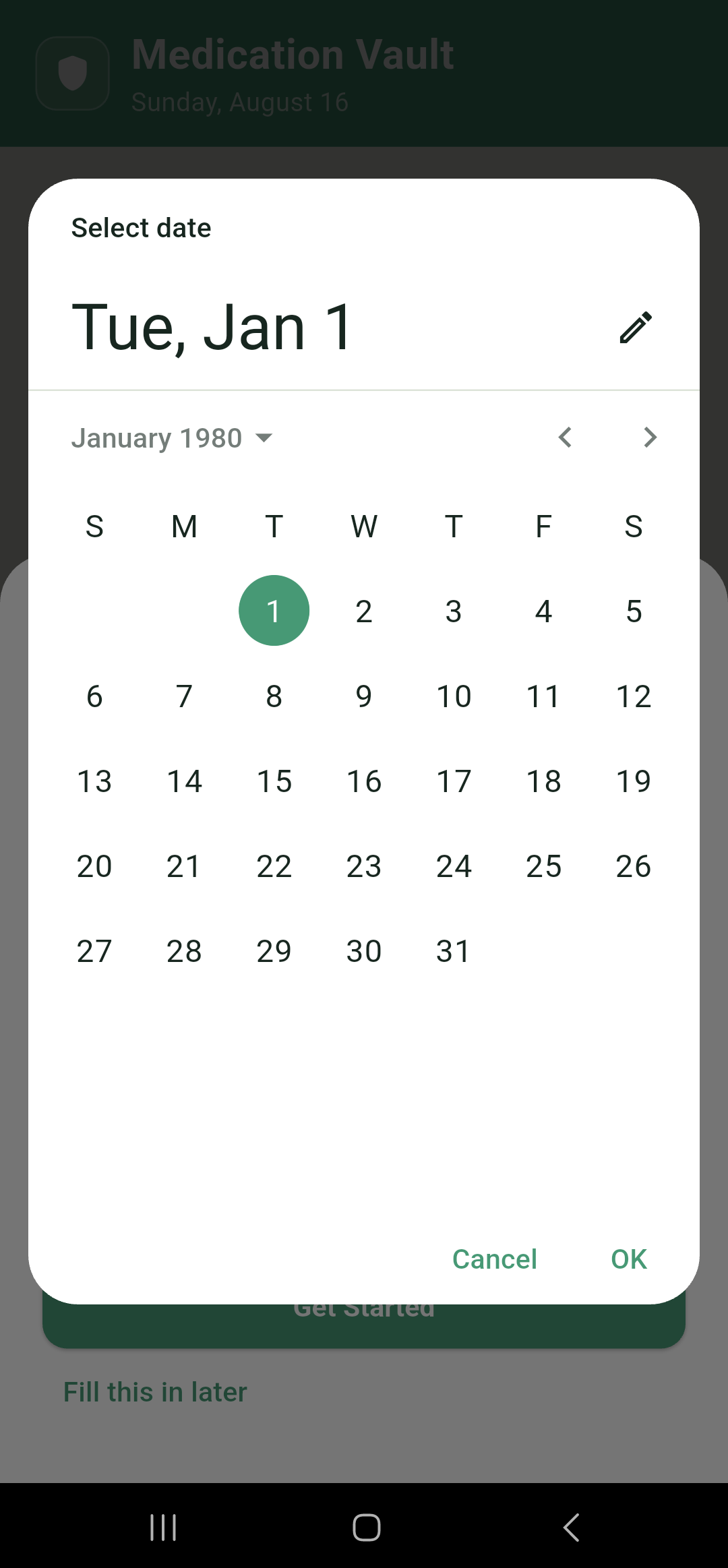
Everything here is stored on this device only, and can be edited any time from Settings › Your profile.
3Turn on dose alerts
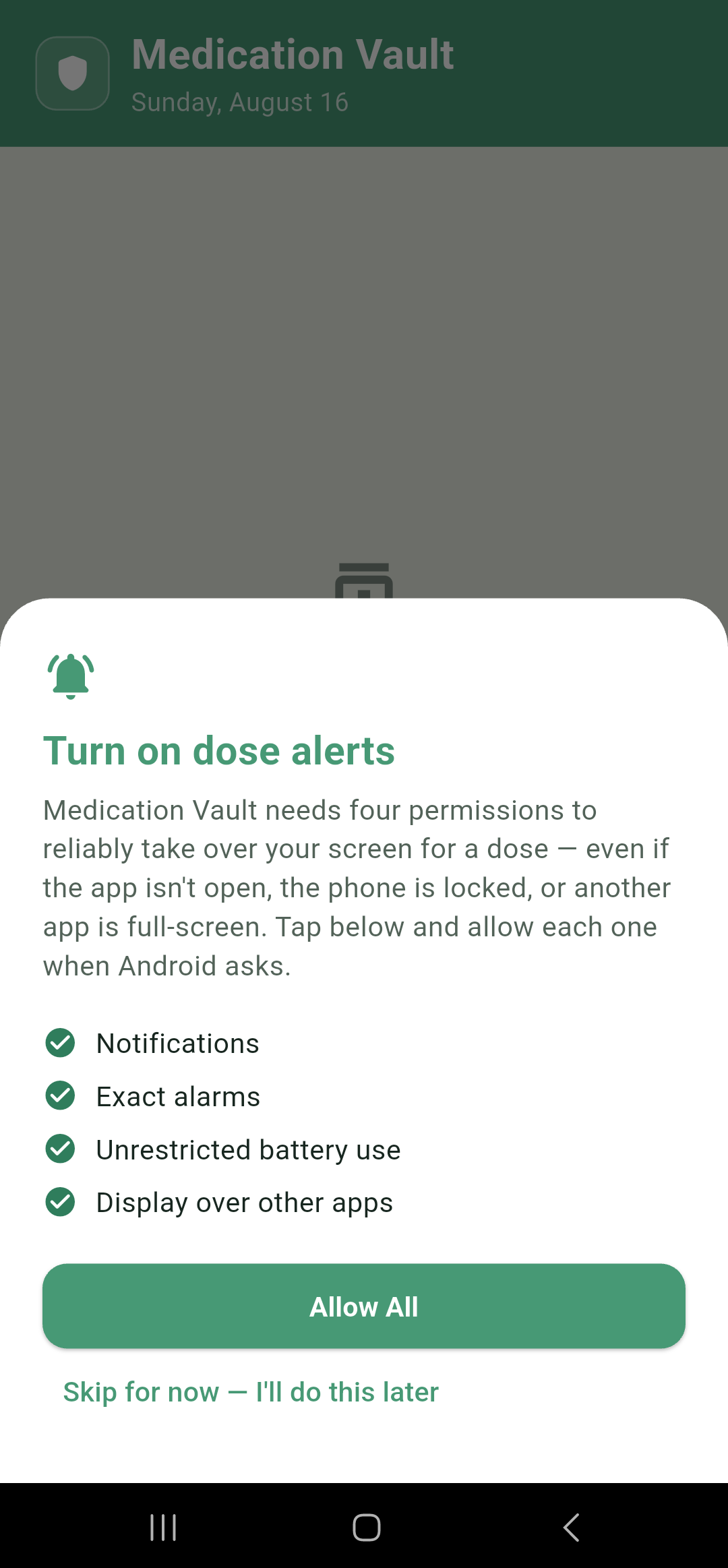
The third card asks for four Android permissions, and they all serve one goal: making sure a medication notification actually reaches you. Tap Allow All and work through whatever Android puts in front of you. The app comes back to this card between each one, and closes itself automatically once all four are green.
- Notifications
- lets the app put notifications on your screen. Without this, nothing else matters.
- Exact alarms
- lets a reminder fire at the minute you asked for, rather than whenever Android decides to get round to it.
- Unrestricted battery use
- stops the phone's battery manager quietly delaying or dropping a reminder while the app is in the background.
- Display over other apps
- lets the alarm take over the screen instantly, even while you're unlocked and using something else, to ensure you get your reminders when you need them.
Particularly on Samsung phones: skipping "Unrestricted battery use" or "Display over other apps" is the single most common reason a reminder is never seen. Samsung applies its own background restrictions on top of Android's, and they are aggressive. If you take nothing else from this chapter, take this.
You can skip this step with Skip for now, and come back to it from Settings › Alarm permissions, which shows the same four items with a live status and a one-tap Fix beside anything that's off. If any of them are ever switched off later, the app will let you know, saying "Dose alarms may not work" with a list of what's missing.
Free and Pro
MedicationVault is free to use, and the free app is not a demo. Reminders, alarms, the full calendar, adherence logging, photos, inventory tracking, every scheduling option, and both kinds of backup are all included with nothing held back.
Five things need a subscription, called MedicationVault Pro:
| Feature | Free | Pro |
|---|---|---|
| Medications tracked | Up to 3 | Unlimited |
| Label scanning with the camera | — | Included |
| Caregiver alerts | — | Included |
| Streaks | — | Included |
| Accent colours | Forest Green | All five |
Everything else — alarms, snooze, the calendar, photos, refill tracking, local backup, encrypted Google Drive backup, the Light and Dark themes, the test alarm — is in the free app.
Pro is a monthly subscription through the Play Store, managed the same way as any other Android subscription. The price is whatever the Play Store shows you at the time. You'll find it on the Subscription card in Settings, along with Restore purchase if you've paid before on another install.
What happens at each limit
- A fourth medication. The wizard lets you fill everything in, and the block happens when you tap Save at the end. Your work isn't lost, but nothing is saved until you either subscribe or remove another medication.
- Scan Label. Tapping it on the Add Medication sheet opens the subscription screen instead of the camera. Enter Manually works exactly as normal.
- Caregiver alerts. The Caregiver tab is still there and explains what it does, but you can't add contacts and no texts are sent.
If a subscription lapses, your three oldest medications stay active and the rest are paused. No data is lost and nothing is deleted, and they still appear in the Meds list. However you wont receive any notifications for anything outside your 3 free, active medications, until your subscription is reactivated.
If a payment fails
If the Play Store can't confirm your subscription, Pro keeps working for a three-day grace period while you check your payment details etc. During that time a red banner sits above the tabs letting you know how many days are left, and tapping it takes you to Settings, where a Check payment details button opens your Play Store subscription page directly.
Today screen
The Today tab is the first thing you see when you open the app, and it does one job: it lists what is still due today, grouped by time, with nothing else competing for your attention.
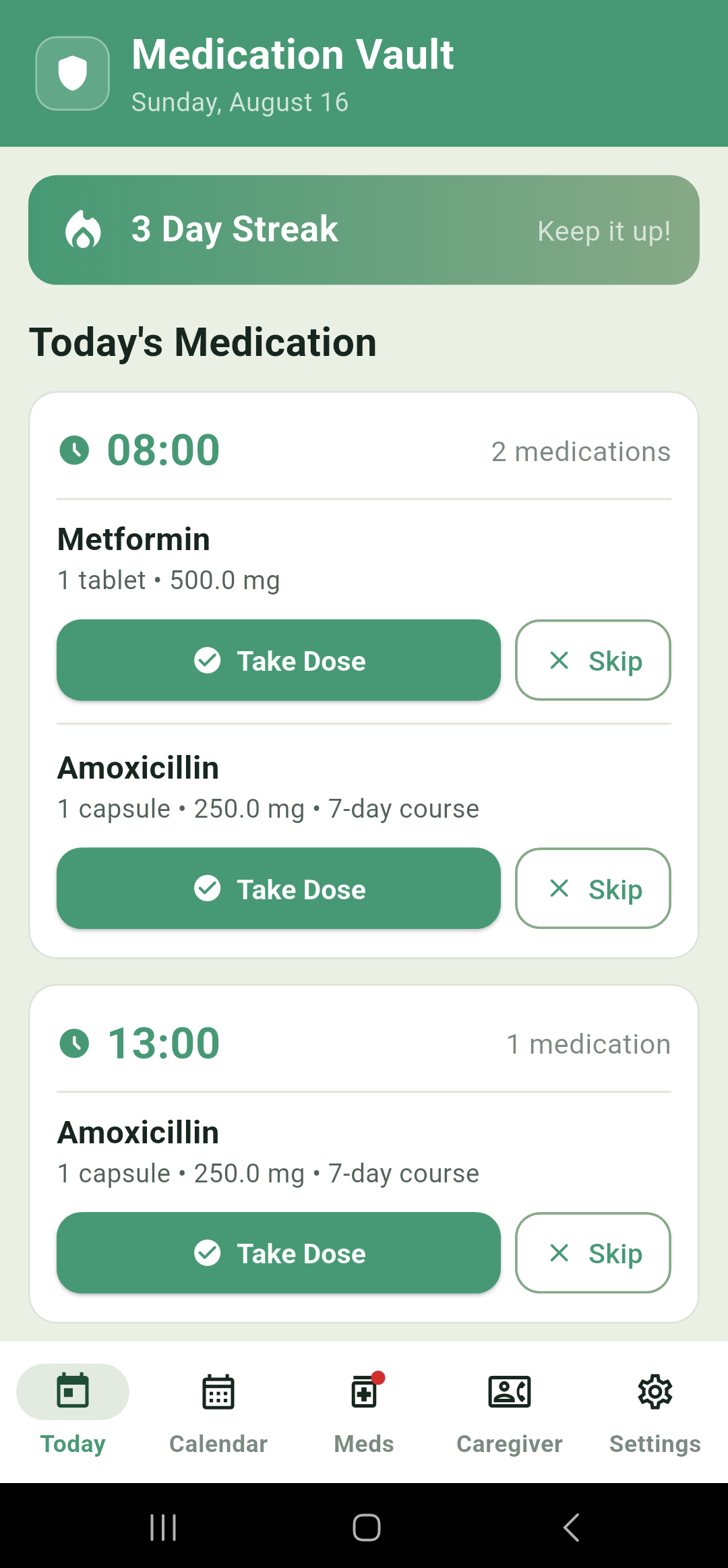
Medication is grouped together by time. Each medication shows its name and its dose, and gives you two buttons:
- Take Dose
- logs it as taken right now, and takes it off the list.
- Skip
- logs it as deliberately skipped. Use this when you've decided not to take a dose, rather than just not getting to it yet.
Anything you've logged disappears from the list, so what's left on screen is always what's still outstanding for the day. When there's nothing left, you get a simple all-done card instead. (If you do want to check your full list of medication from the day, you can do so in the Calendar view)
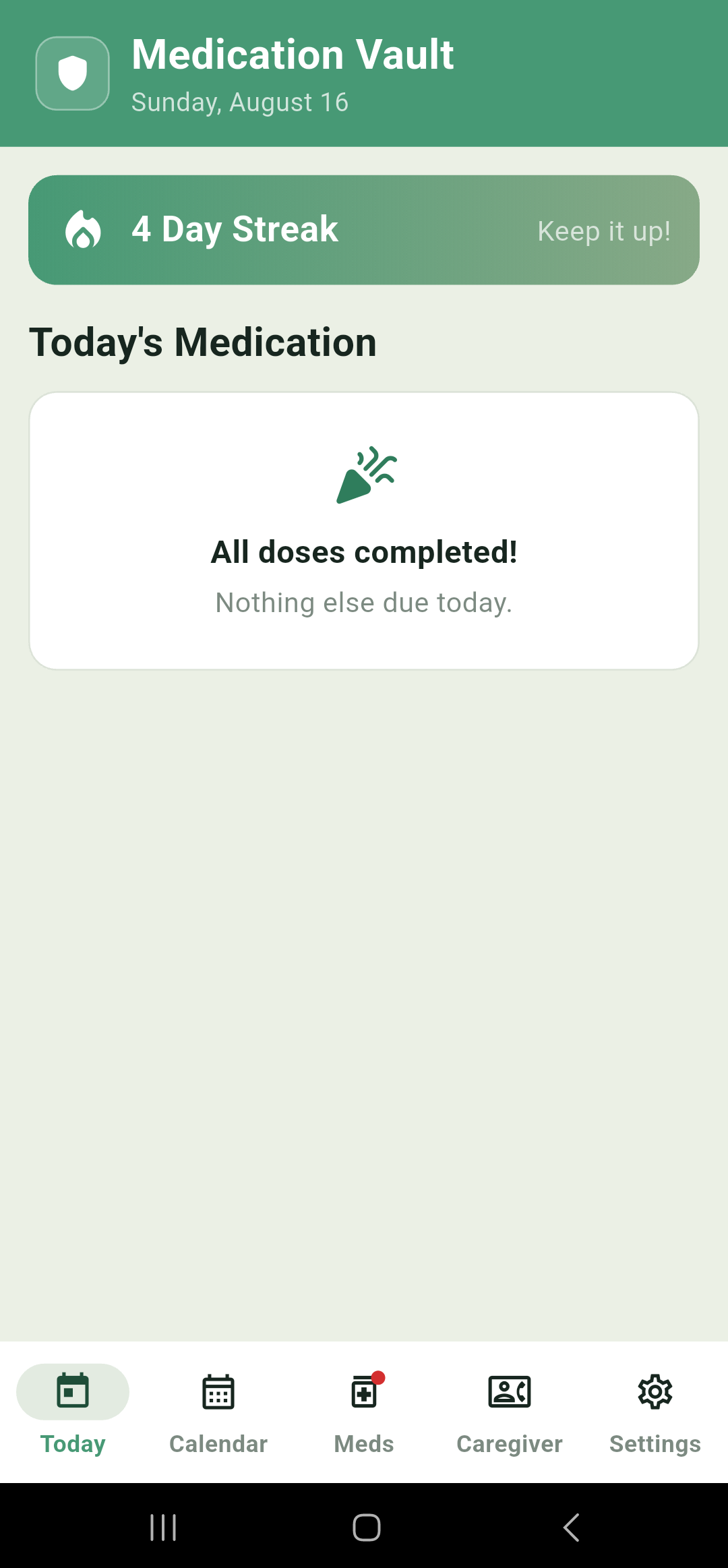
The all-done card also appears on a day when nothing was ever scheduled, if you had a day where no medication was due.
Doses you haven't responded to
A dose whose time has passed but which you haven't logged simply stays on the list, looking the same as any other. Today doesn't mark anything as late or overdue. It is a list of outstanding doses, in time order, and it will keep showing you a 9am dose at four in the afternoon until you do something about it.
Snoozed doses
When a notification appears, you may be busy or have your hands full at that exact moment, so you have the option to press snooze. Notifications can be snoozed for 10 mins or 30 mins.
If you snoozed a dose rather than taking or skipping it, it will display the new time it will re-trigger, and the heading turns amber with a small snooze icon. A line underneath reads "Snoozed — new alert time". That way it's obvious at a glance that the time you're looking at isn't the original schedule.
Streaks
Once you've had three good days in a row, a streak banner appears above the list. Keeping your streak going is a fun little way to help motivate you to take all of your medication.
Calendar
Where Today shows you this moment, the Calendar shows your overall schedule of medication: one day, one week or a whole month at a time. It is also the only place you can go back and log or edit a dose you marked wrongly.
Daily
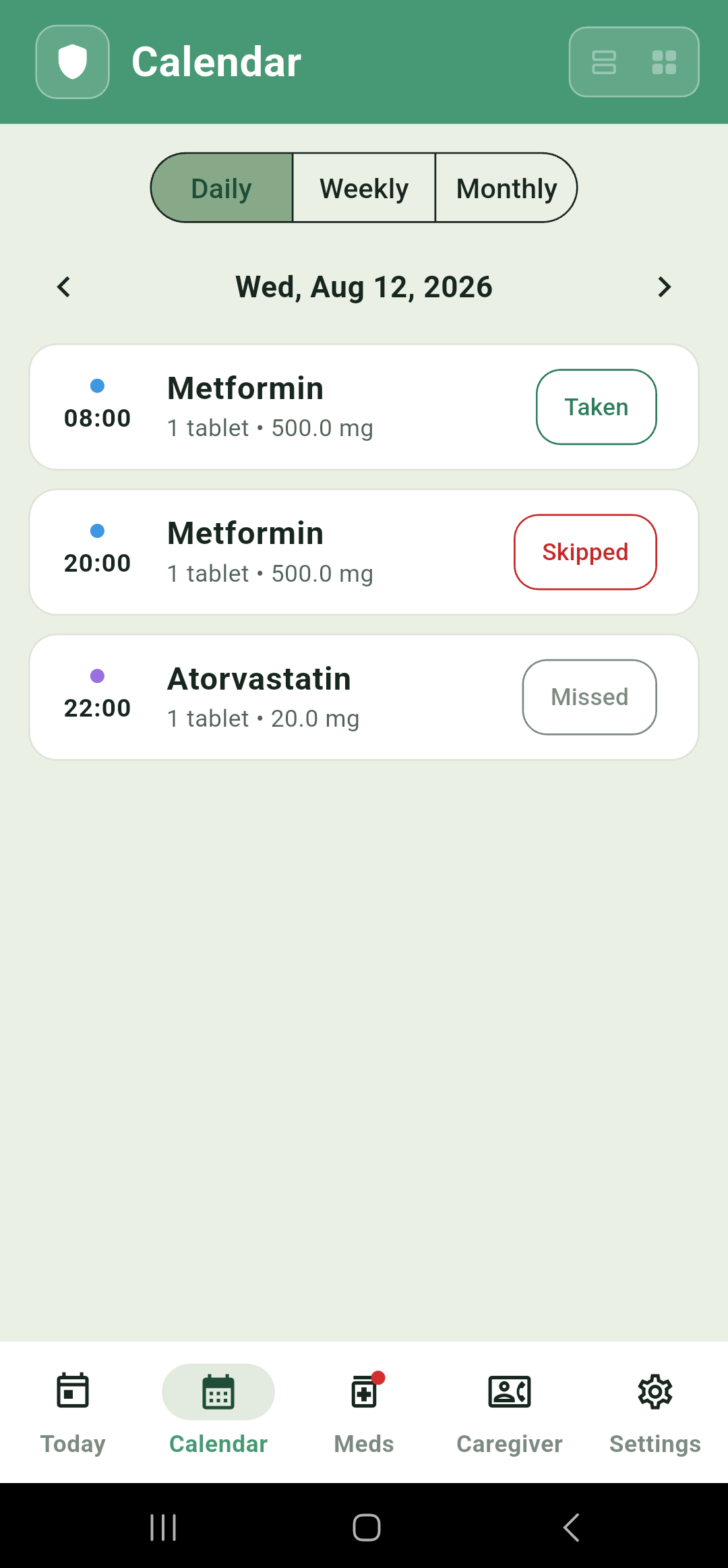
Every dose scheduled for one date, past and future, each with its status on the right. Use the arrows either side of the date to move a day at a time.
Weekly
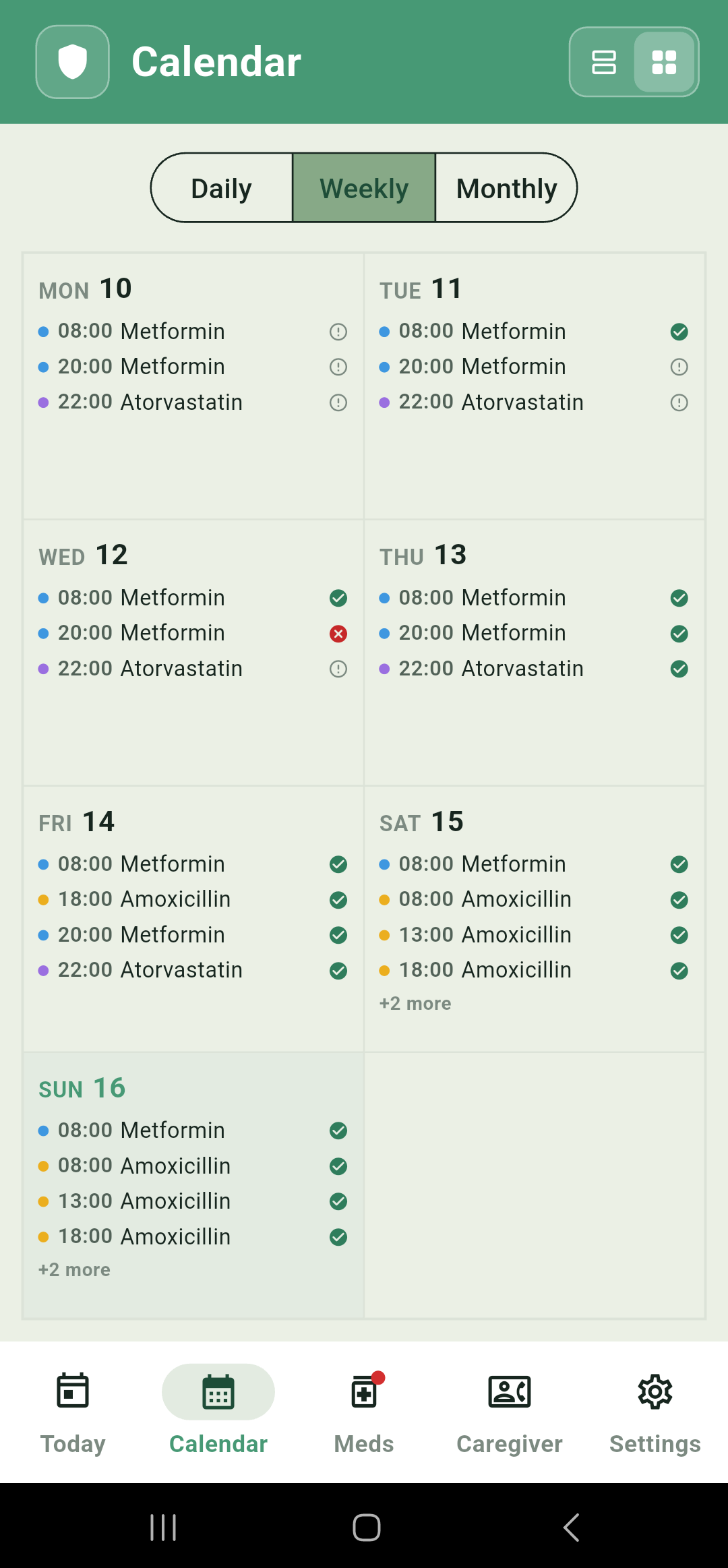
A week at a time, either as a grid of day boxes or as a scrolling list, using the toggle at the top right. Useful for seeing the shape of a week at once, especially for medication that isn't taken every day.
Monthly
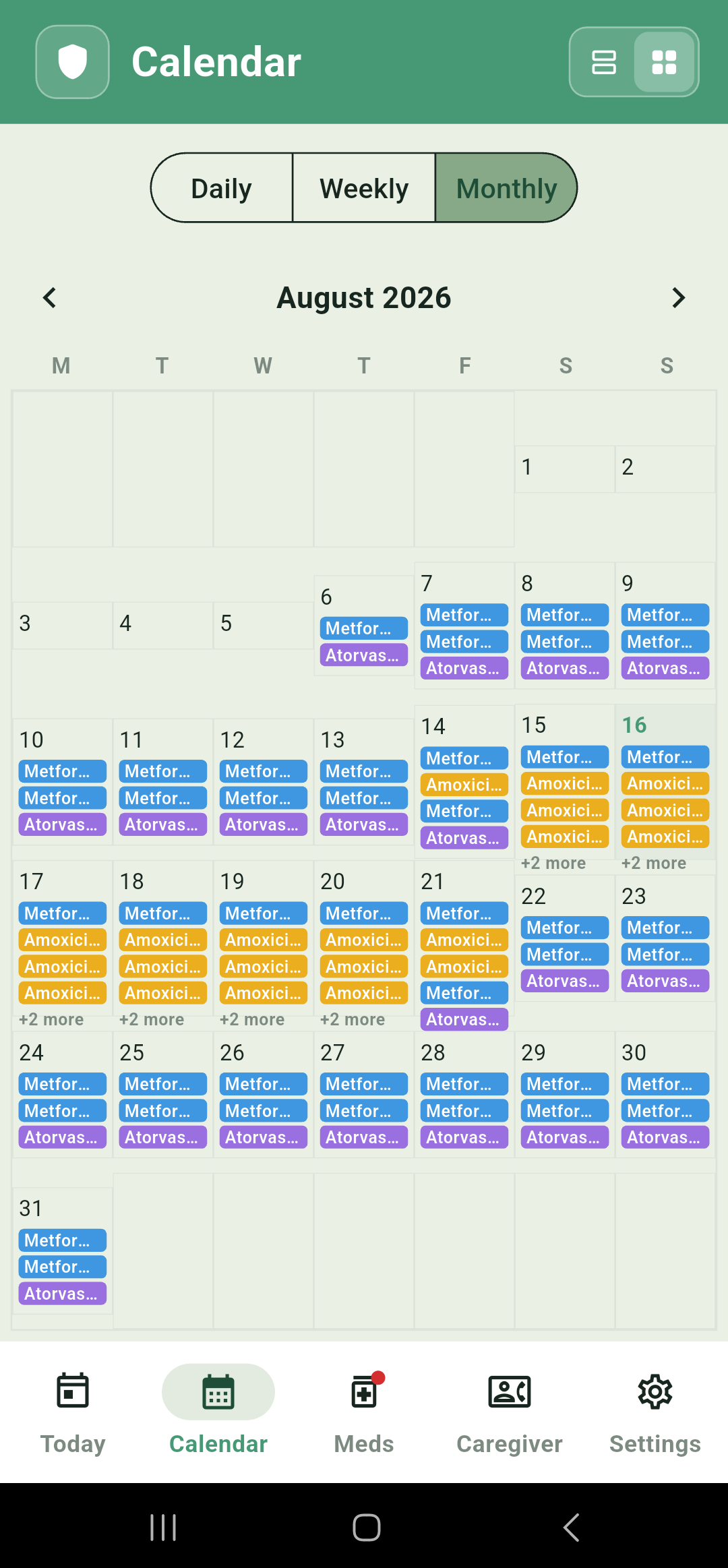
A full month grid, Monday to Sunday. Each day shows a small coloured bar per dose, tinted with that medication's own colour and labelled with its name, with a +N more label when there isn't room for everything. Tap any day to jump to its Daily view. The same toggle at the top right switches this to a list, one line per dose for every day of the month, which is the easier of the two to read straight down.
What the statuses mean
| Status | Meaning |
|---|---|
| Upcoming | Its time hasn't come yet. |
| Taken | You logged it as taken. |
| Snoozed | You pushed the alarm back; it will fire again. |
| Skipped | You deliberately chose not to take it. |
| Missed | Its time has passed and nothing was logged against it. |
Logging a dose after the event
Tap any dose, in any of the three views, and a small sheet offers Mark as Taken, Mark as Snoozed and Mark as Skipped. This works on any date, past or future, so a dose you took but forgot to log at breakfast can be put right in the evening.
Two things worth knowing. Marking a past dose as taken still comes off that medication's supply count, at the full quantity per dose, so your inventory stays right. And there is no way to clear a log once it's made — you can change it by marking it as something else, but you can't take it back to nothing.
Your medications
The Meds tab is the master list of everything you're tracking, with one card per medication.
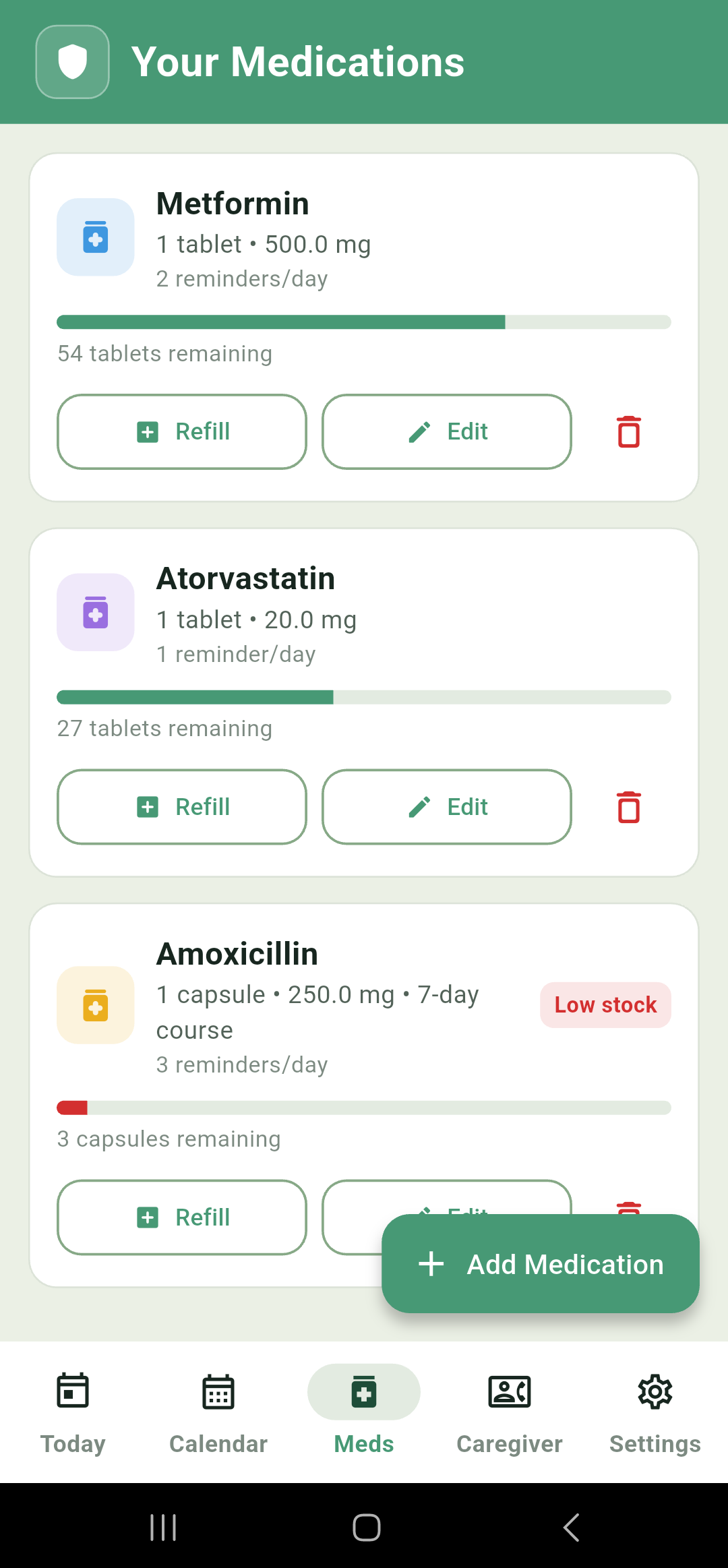
Each card shows the name, the strength and form, how many reminders a day it has, and a supply bar. The bar shrinks as doses are logged and turns red with a Low stock chip once the supply reaches the threshold you set when you added it. When anything is low, a small red dot appears on the Meds icon in the bottom bar so you know without opening the tab.
Low stock shows you a red chip and a red dot, and if you switched on caregiver alerts it will send them a message to let them know you're running low so they check in on you.
Refill
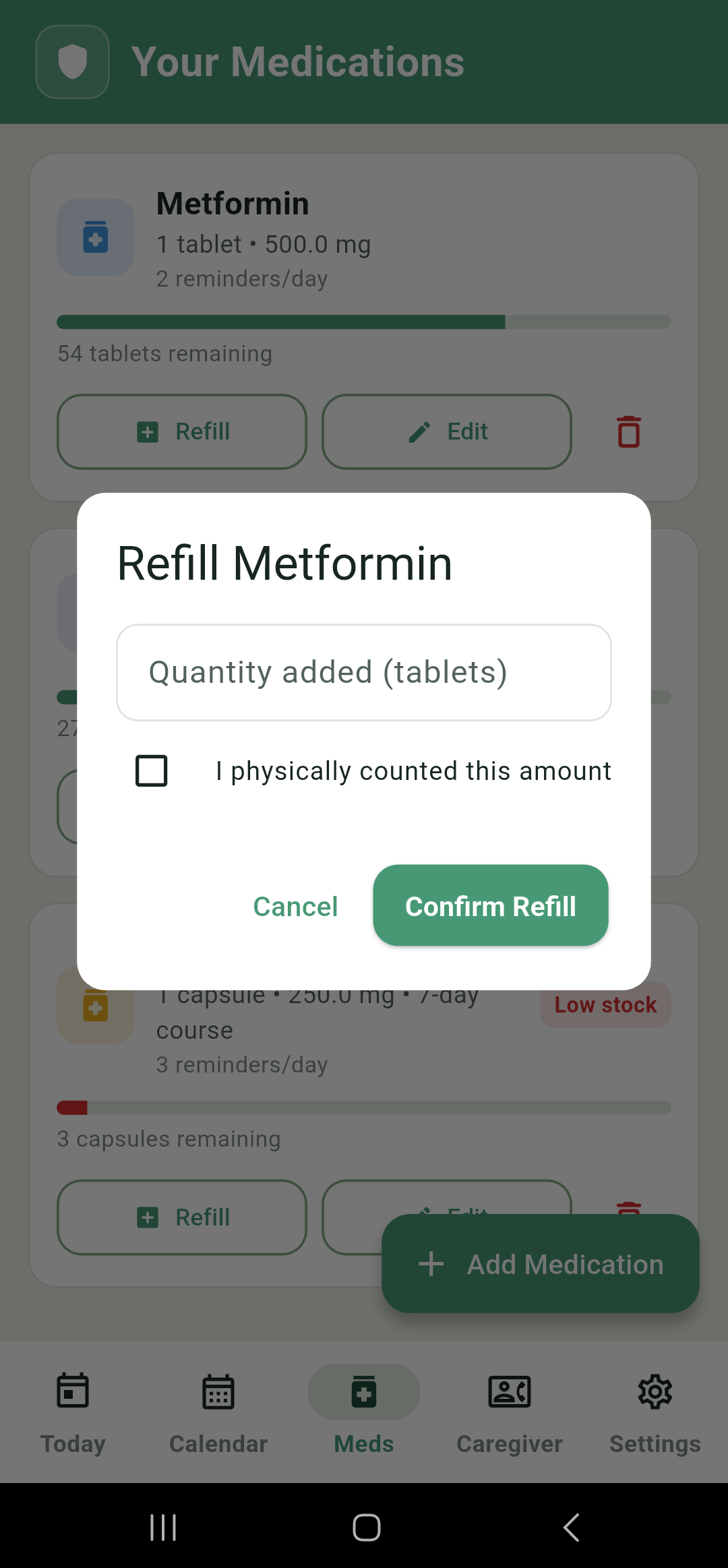
Tap Refill when you've collected a new prescription, and enter how much you've added.
The "I physically counted this amount" checkbox is for your own records. The amount of medication you're given may not always match what the label on the box says, or you might be give multiple boxes or bottles. So it's always worth physically checking you are entering the right amount.
Edit
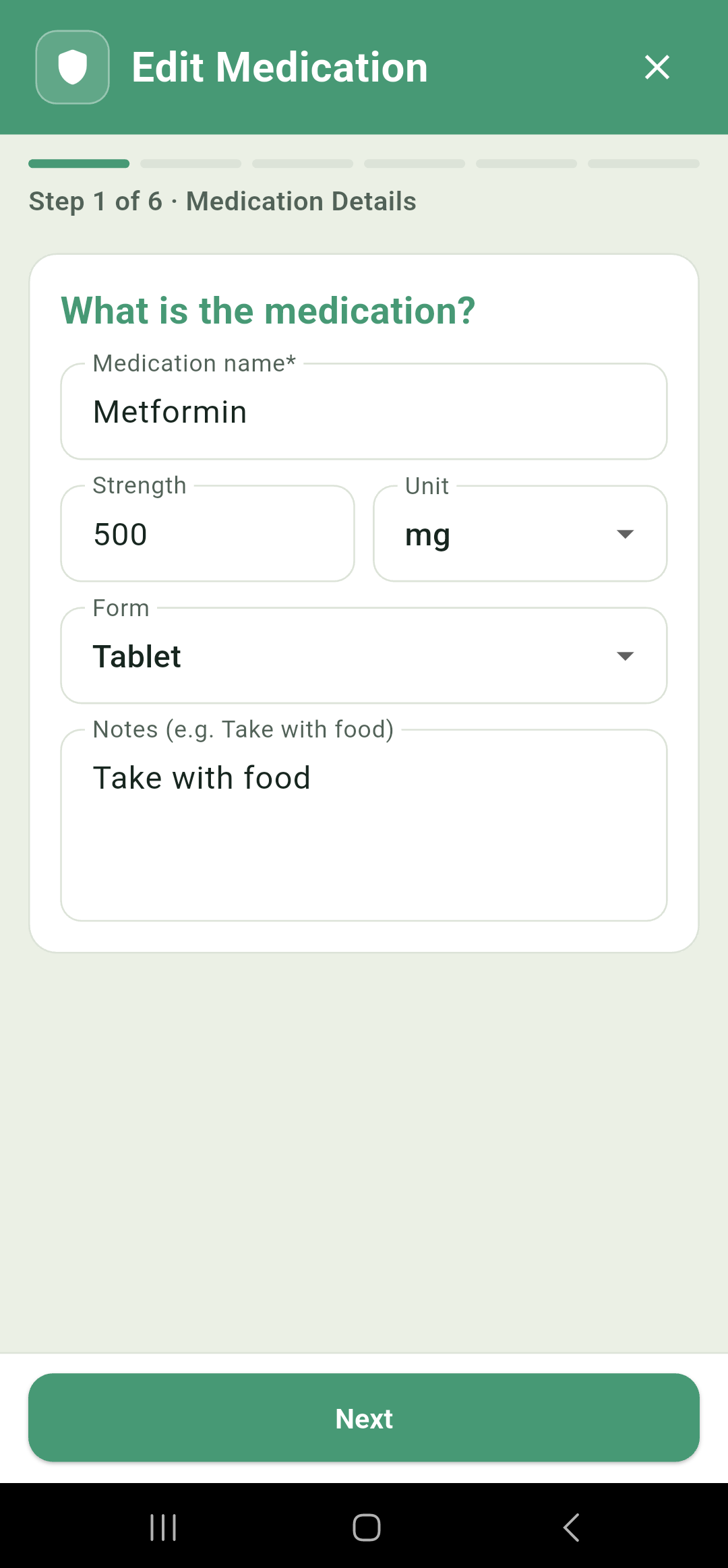
Edit reopens the same six-step wizard you used to add the medication, filled in with everything currently saved. If you have any details that you need to change of your medication schedule changes, you can do it here. Importantly though, editing only changes the future. Everything already logged as taken, skipped or snoozed stays exactly as it was. You can change a dose time or a schedule mid-course and the future notifications will be changed as needed, but the history of what you have taken up until now will remain the same.
Delete
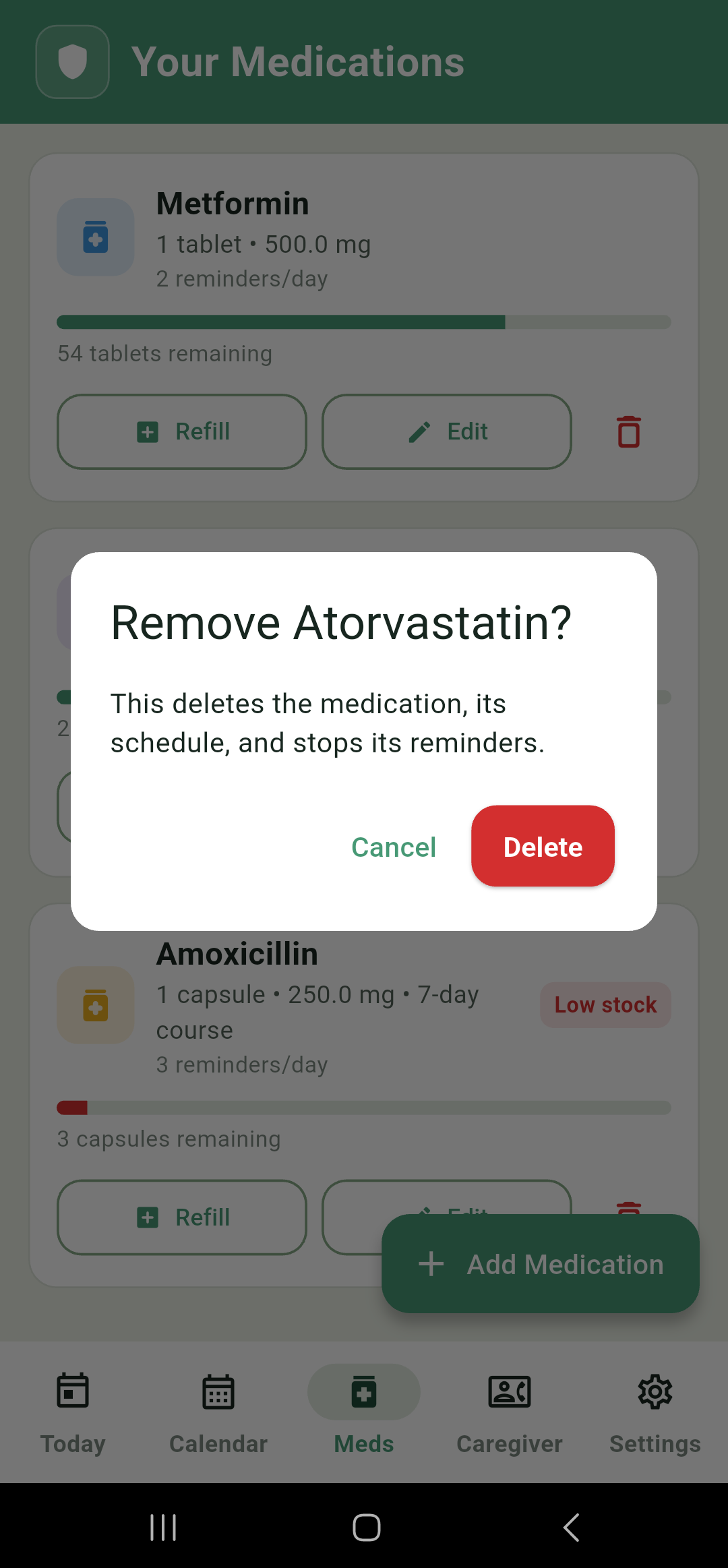
The red bin icon removes a medication for good, along with its schedule and every future reminder for it. It always asks for confirmation first, because once it is gone there's no undo.
The add-medication wizard
Adding a medication — or editing one — is an easy six-step process
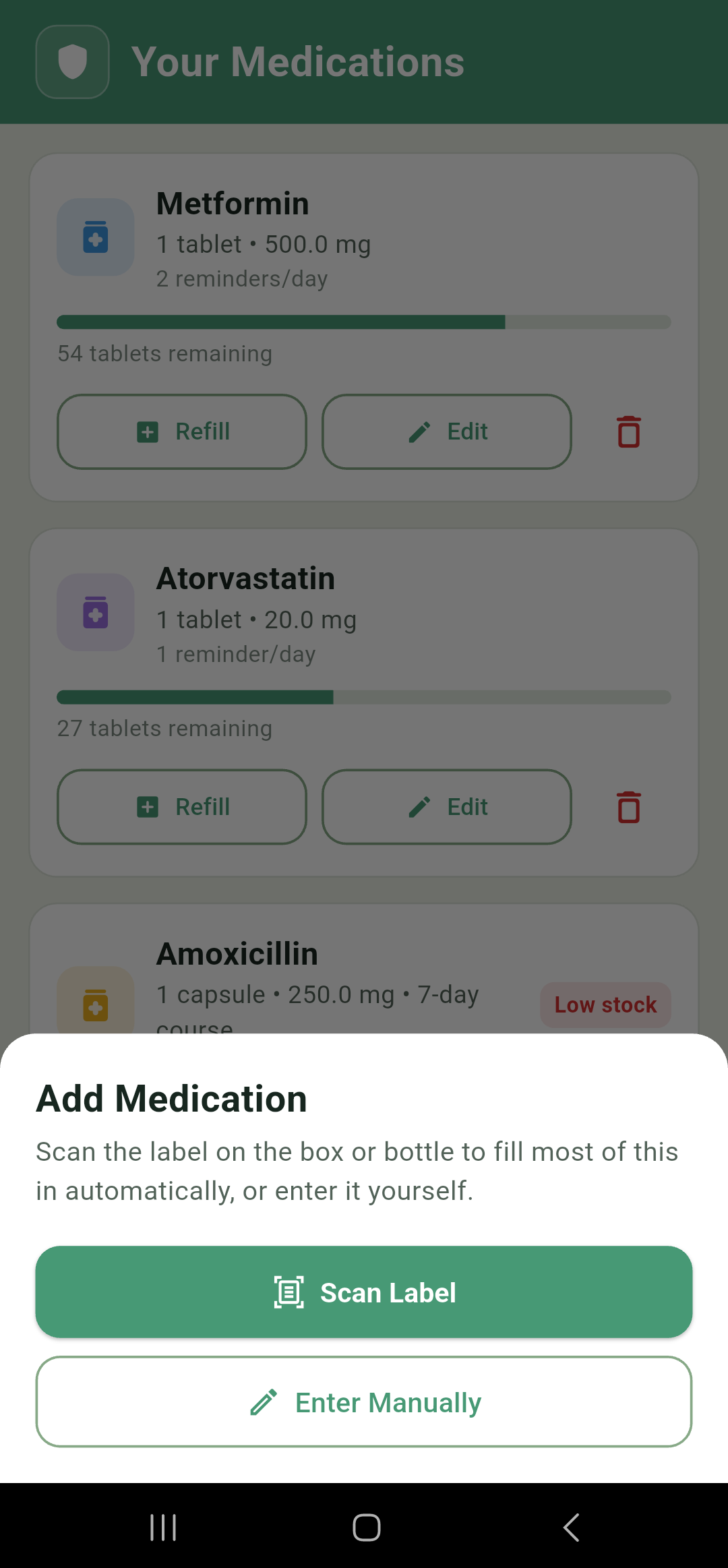
Tapping Add Medication first offers you a choice. Scan Label photographs a pharmacy label and fills in as much as it can read, which is a Pro feature covered in Scan a label. Enter Manually opens the same wizard blank. Either way you end up in the same six steps, and anything a scan filled in stays fully editable.
1Medication details
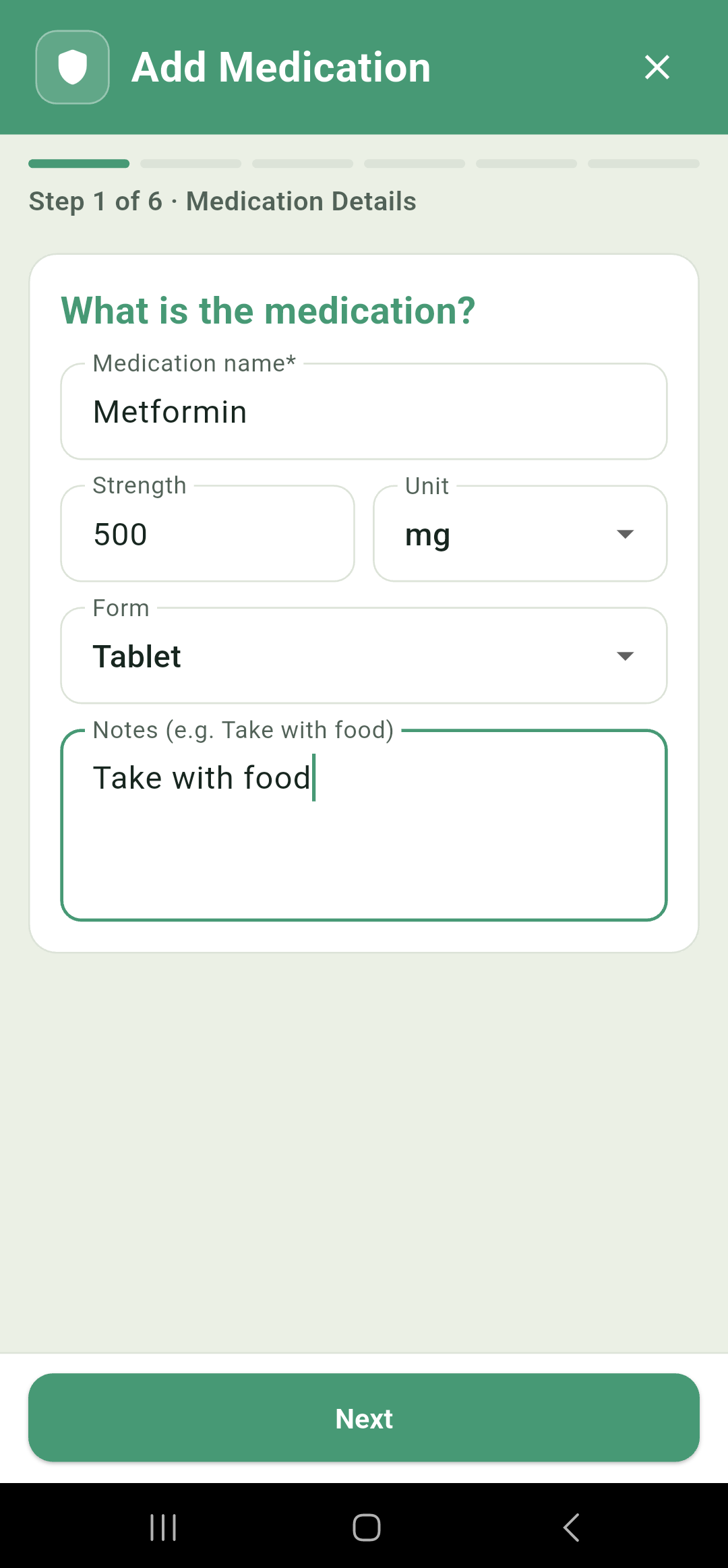
| Field | What it's for |
|---|---|
| Medication name | The only required field. Brand name or generic, whichever you'd recognise on the box. |
| Strength and unit | A number plus a unit — mg, mcg, g, mL, IU, mEq, %, units, puffs or drops. Shown alongside the name throughout the app. |
| Form | Tablet, capsule, liquid, injection, skin patch or other. This sets the word used for supply counts, so you get "tablets remaining" or "mL remaining" as appropriate. |
| Notes | Free text, such as "take with food". This one is worth filling in: it's displayed on the full-screen alarm, where you'll actually read it. |
2Schedule
This is the busiest step, and the one worth understanding properly. It asks three separate questions: how much you take at a time, on what pattern of days, and at what time should the notifications pop up.
Quantity per dose is the first dropdown, from a quarter of a unit up to ten. How many tablets have you to take each time? Or how many ml of liquid? etc
Recurrence is the segmented control below it, with three choices for building your schedule.
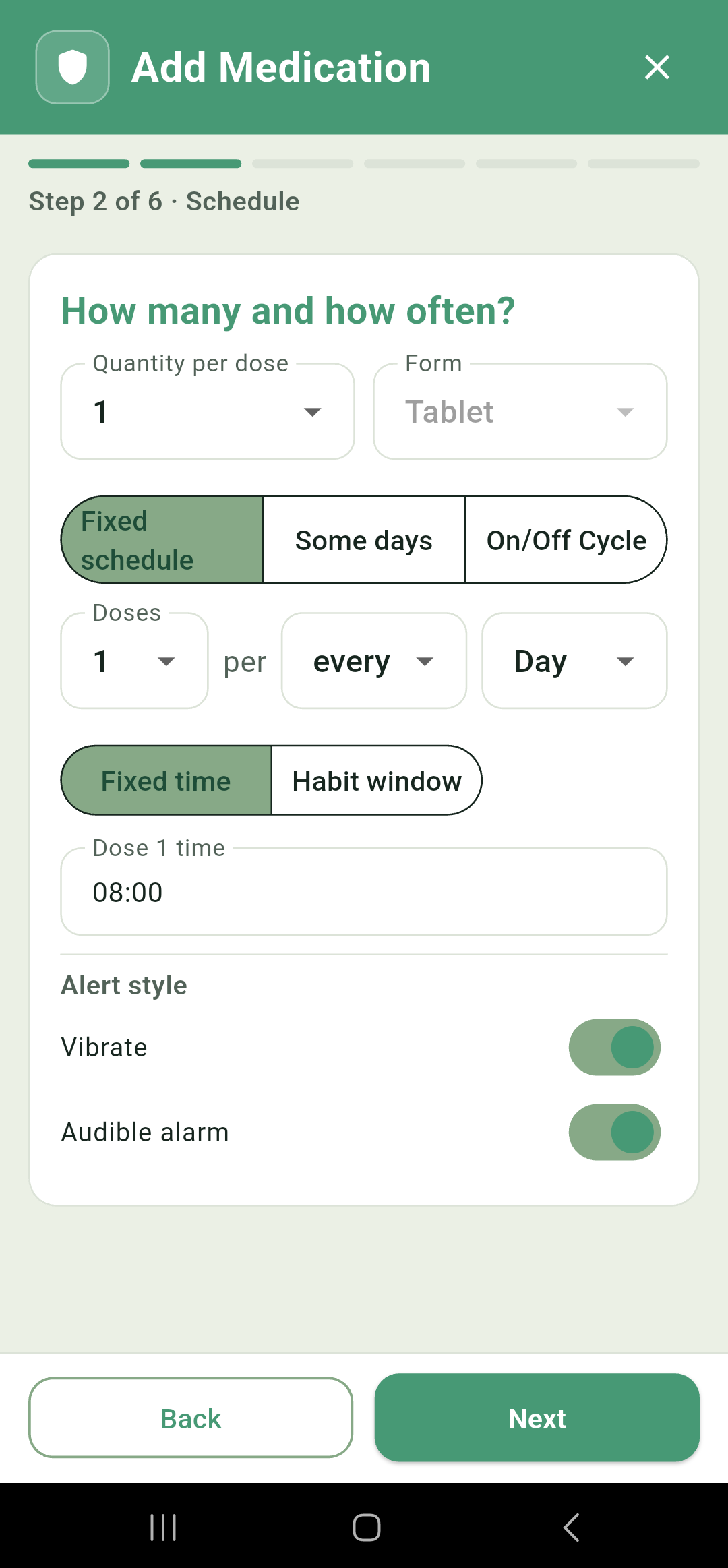
Fixed schedule is the default and covers most prescriptions. It reads as a sentence you fill in: so many doses, per so many days. Leave the middle box on every and the unit on Day and you have a once-a-day medication. Set the doses box to 2 and you have twice a day. Change the unit to Hour, Week or Month to build your exact schedule.
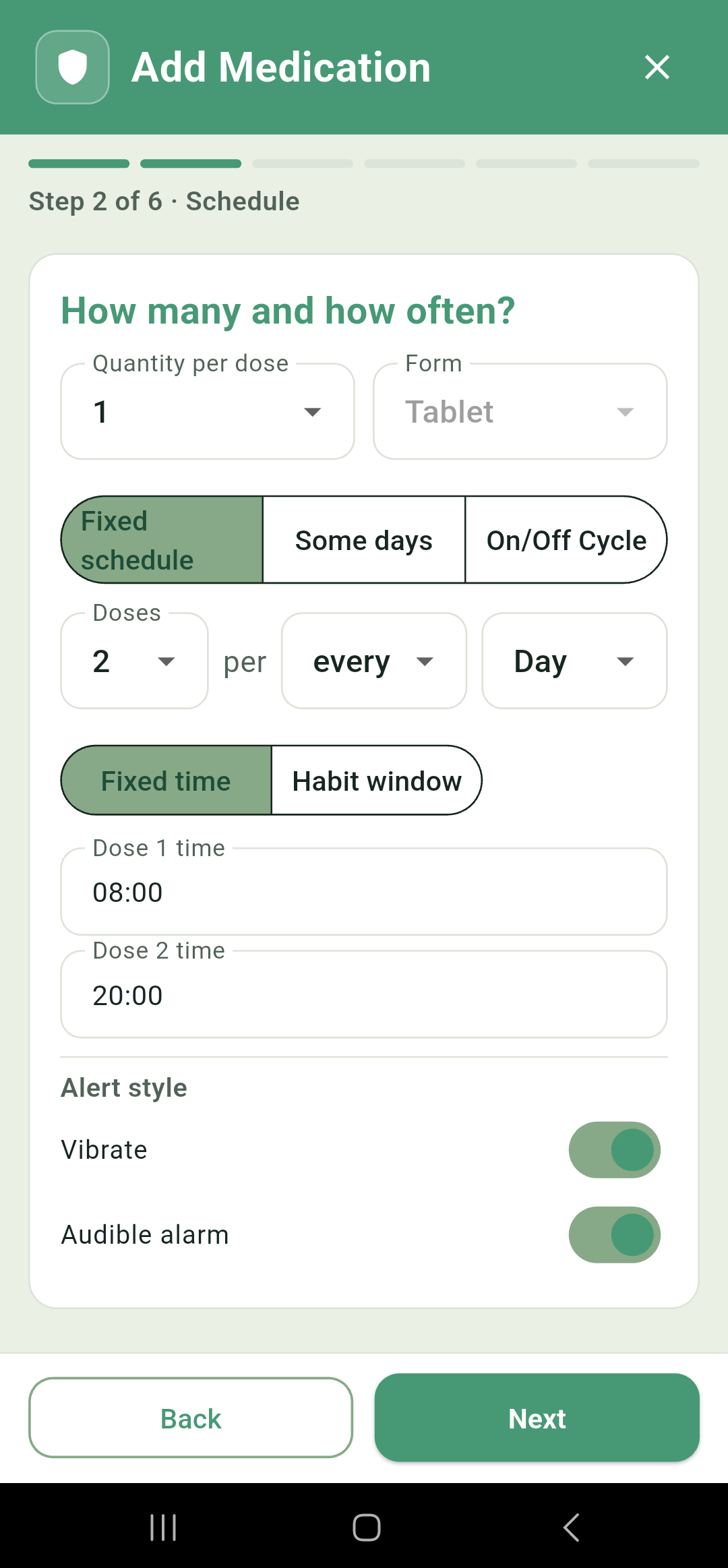
The same control handles hourly dosing. Picking one of the hour spacings — 2–4 hrs, 4–6 hrs or 6–8 hrs — switches the unit to Hours and adds an Up to N doses per day cap, which you set yourself anywhere from one to twelve. The app fills in as many dose times as fit in a day up to that cap, and you can adjust any of them afterwards.
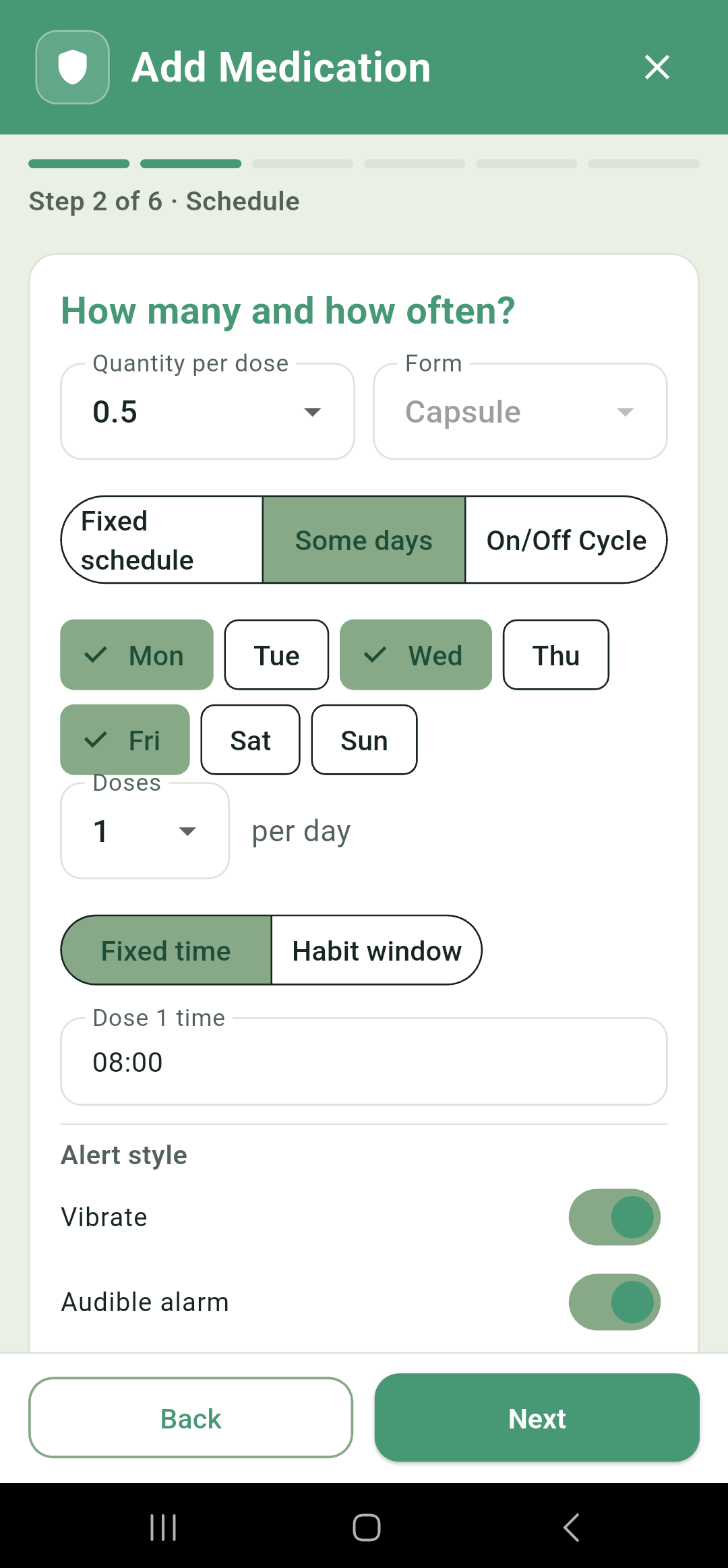
Some days is for anything tied to particular days of the week: Mondays, Wednesdays and Fridays, or weekdays only. Tap the day chips you want.
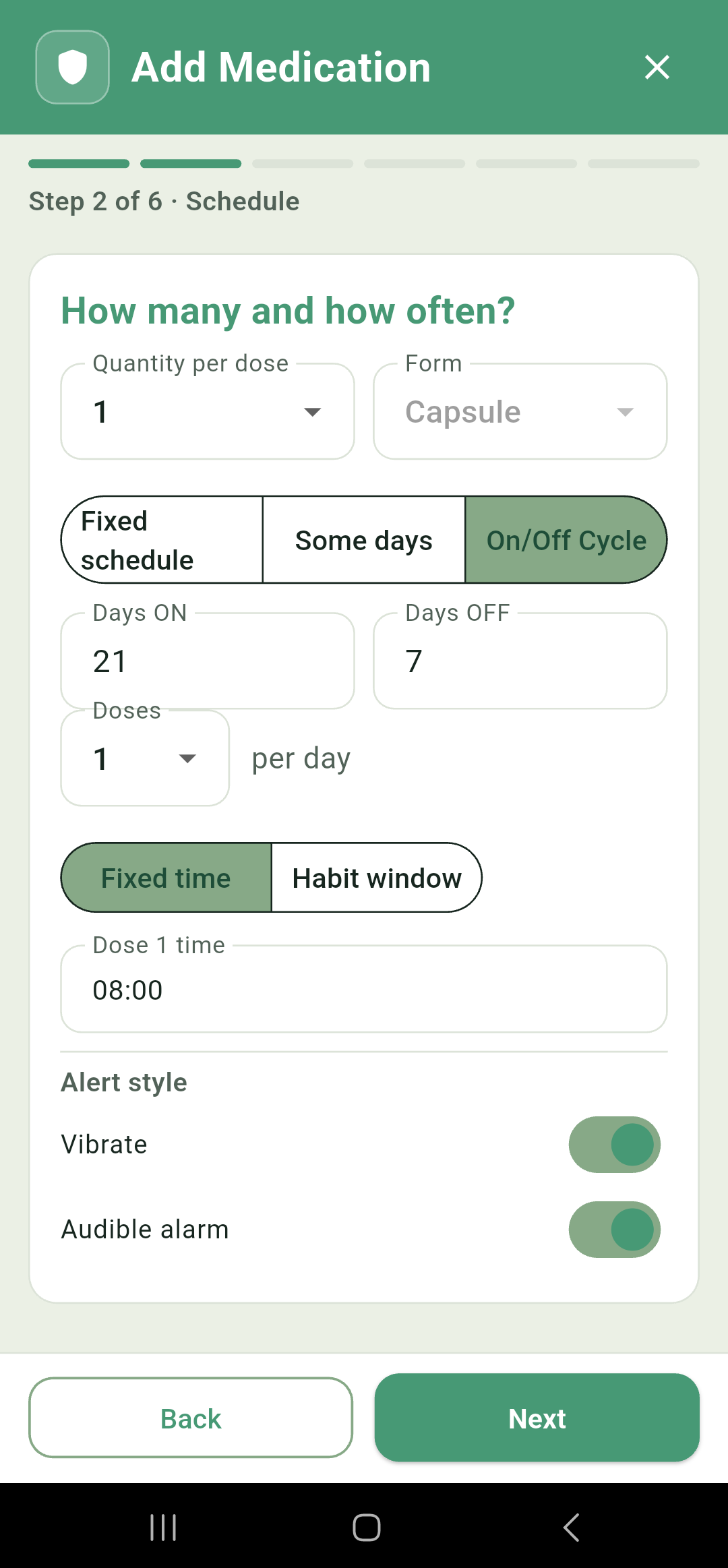
On/Off Cycle is for anything taken in a cycle with off periods — twenty-one days on and seven off is the default, which will look familiar to a lot of people. The cycle counts from the medication's start date and repeats indefinitely.
Fixed times or habit anchors
Once you have built your schedule, you can then decide on exactly what times your reminder notifications should activate.
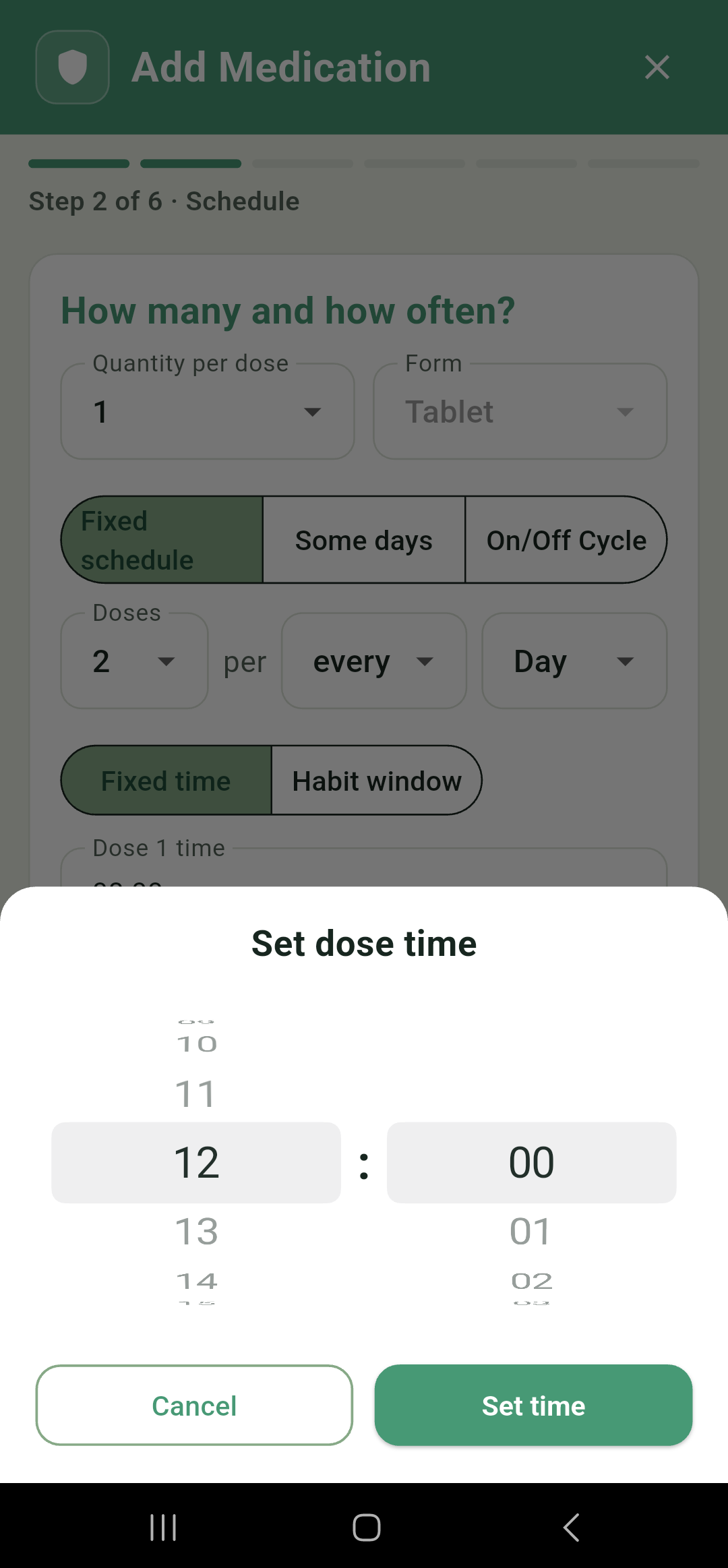
Fixed time gives you a time per dose, opening a two-wheel picker for the hour and the minute. Straightforward, and what most people want.
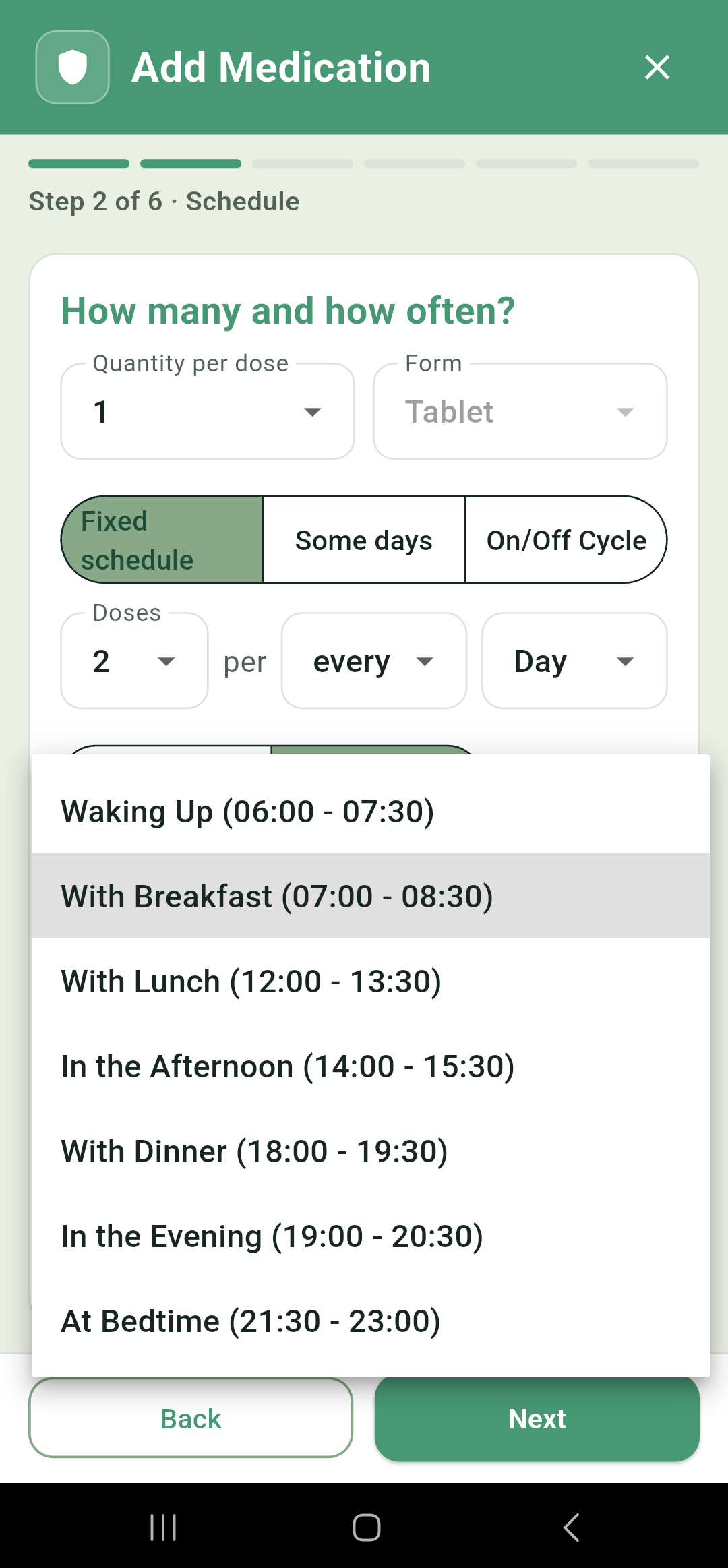
Habit window lets you pick a regular point in your day instead — waking up, with breakfast, with lunch, in the afternoon, with dinner, in the evening, or at bedtime. It's a friendlier way to answer the question when a dose is really governed by routine rather than the clock.
Each anchor shows a range beside it, such as With Breakfast (07:00 - 08:30), but the alarm itself goes off at one fixed time inside that range rather than anywhere within it. Think of the anchor as a quick way of choosing a sensible time rather than a flexible window. You can of course mark the dose as taken earlier from the Today screen.
How it alerts
You will always get a full screen notification. Two switches at the bottom, Vibrate and Audible alarm, both on by default, will add vibration and sound to your notifications. Turning both off leaves you with a silent full-screen alarm.
3Course duration
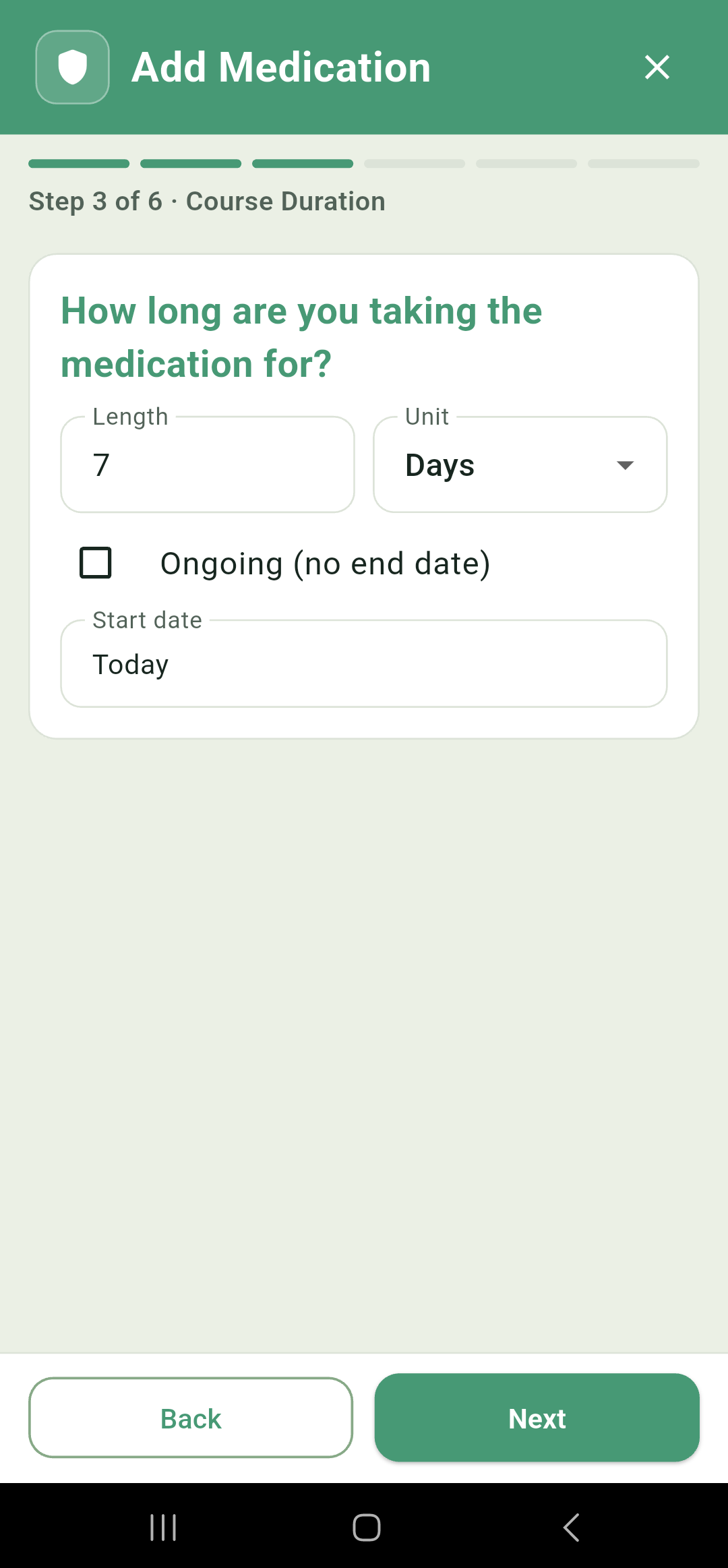
Set a length in days, weeks or months for a fixed course such as a week of antibiotics, or tick Ongoing (no end date) for a repeat prescription. Ticking it greys out the length, since it no longer applies.
Start date defaults to today, but you can set any calendar date to start your medication.
4Photo
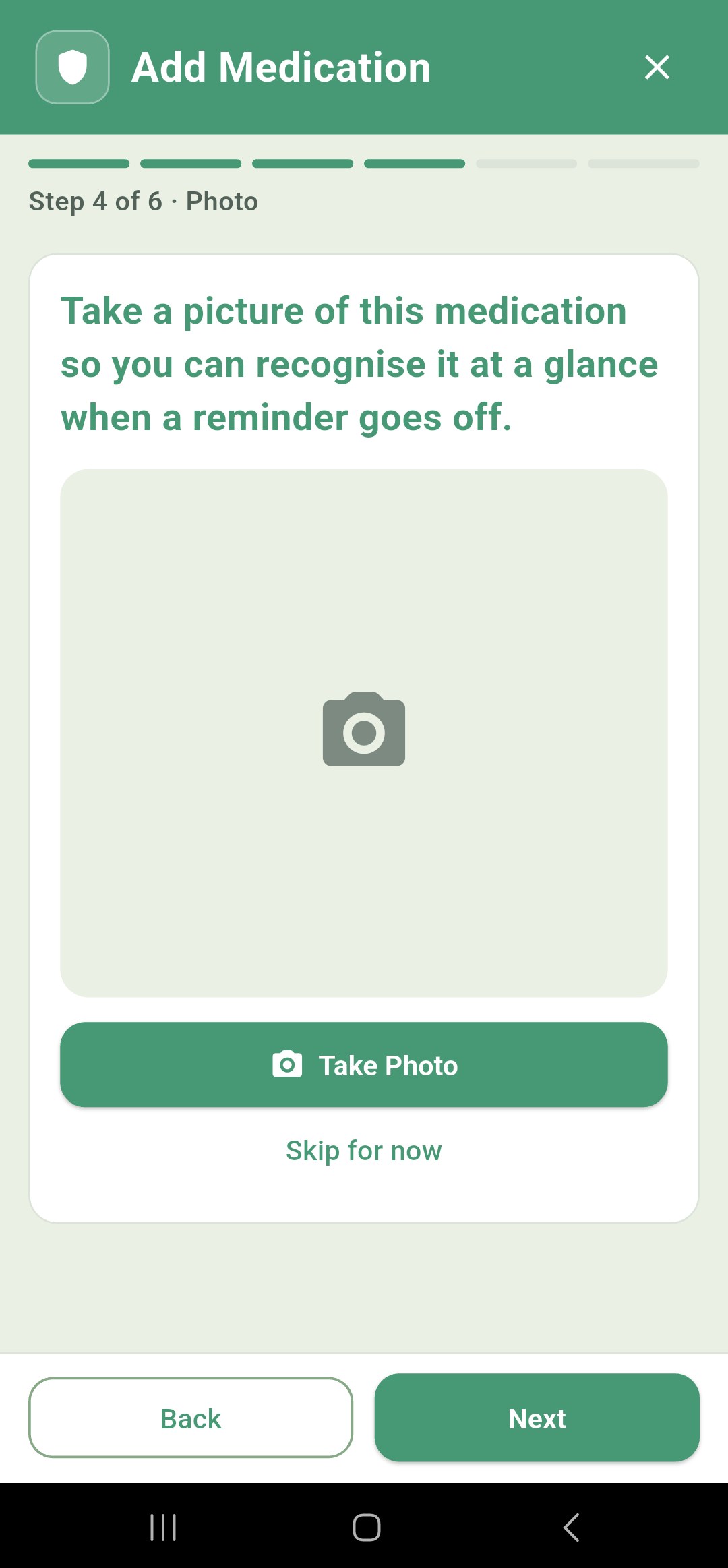
You can take an optional photograph of the tablet, bottle or box. It's genuinely useful if you take several things that look alike, and would like a visual reminder of what medication to take. It will pop up with the notification each time it triggers.
Skip for now moves on without one, and you can add it later through Edit.
This picture is separate from the photograph that scans the label, if you have chosen to enter your medicine information that way.
Photos are stored on this phone and are not included in either kind of backup. If you restore onto a new phone this is the only thing that wont transfer, everything else comes back but the photos will need retaking.
5Inventory
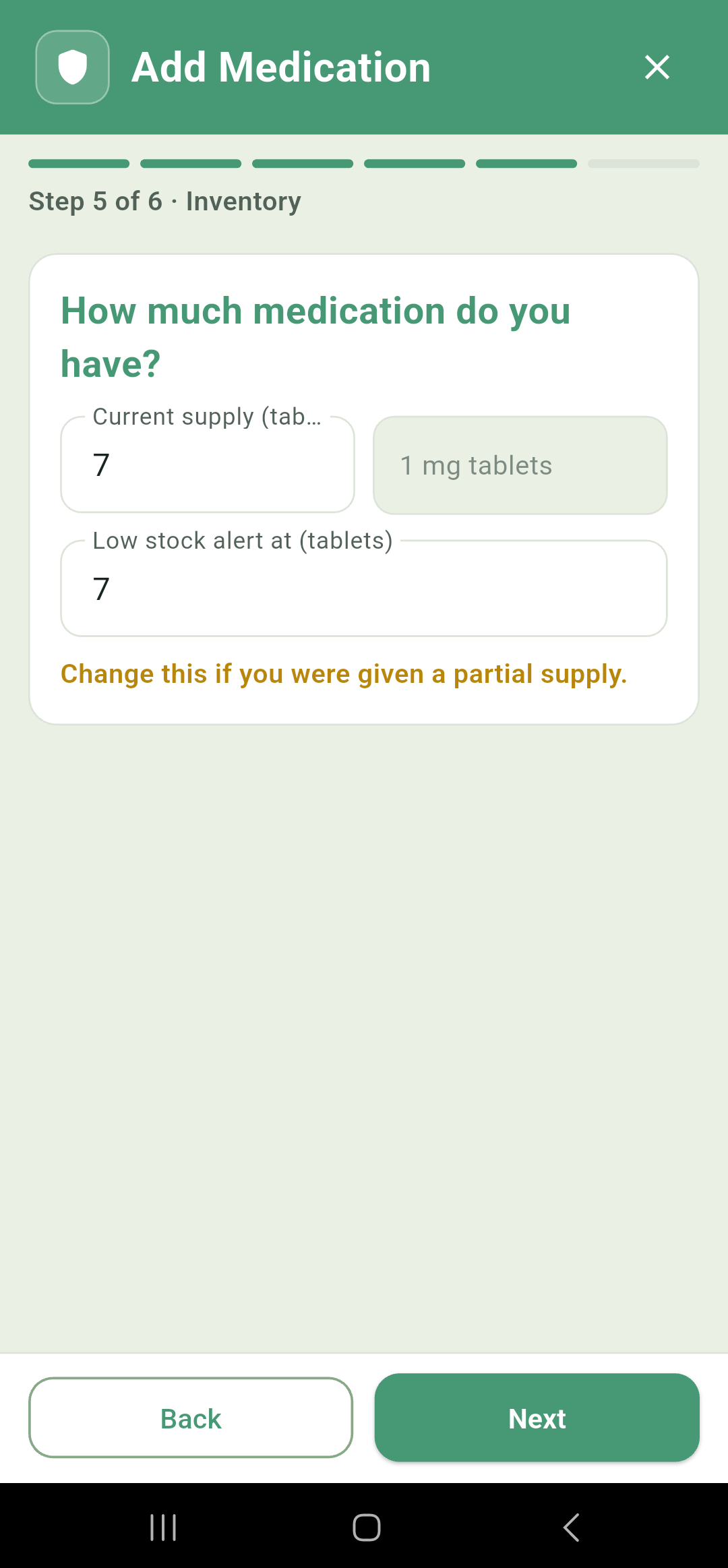
Current supply fills itself in from the dose, the frequency and the course length, on the assumption that you're starting with a full course. You can edit this if you were only given a partial supply, or if this is an ongoing medication that you will be regularly refilling.
For a liquid or an injection, an mL / L switch sits alongside, so you can enter your supply in whatever unit is printed on the bottle. It converts as you type, and the same switch appears on the Refill dialog.
Low stock alert at sets the point where the supply bar turns red and the badge appears on the Meds tab to remind you that you will need a refil. Seven is the default, which for a once-a-day medication is about a week's warning.
6Reminder colour
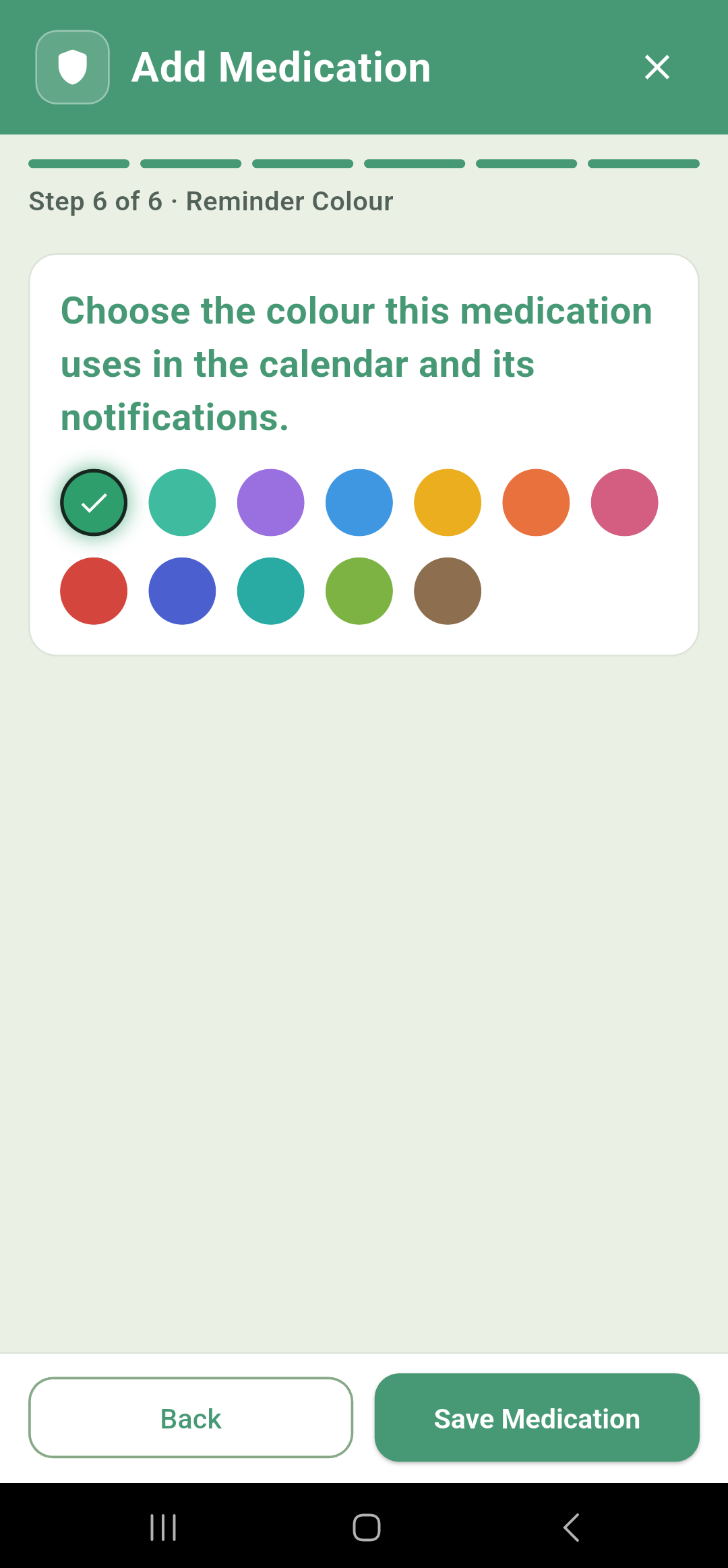
Twelve colours, purely so you can tell medications apart at a glance. This is the colour used for the bars on the monthly Calendar and the icon on the Meds list.
Editing an existing medication opens these same six steps, already filled in. See Your medications.
Scan a label with AI
Rather than typing everything in, our proprietary AI system can attempt to read a pharmacy label and fill in most of the wizard for you. This is a Pro feature.
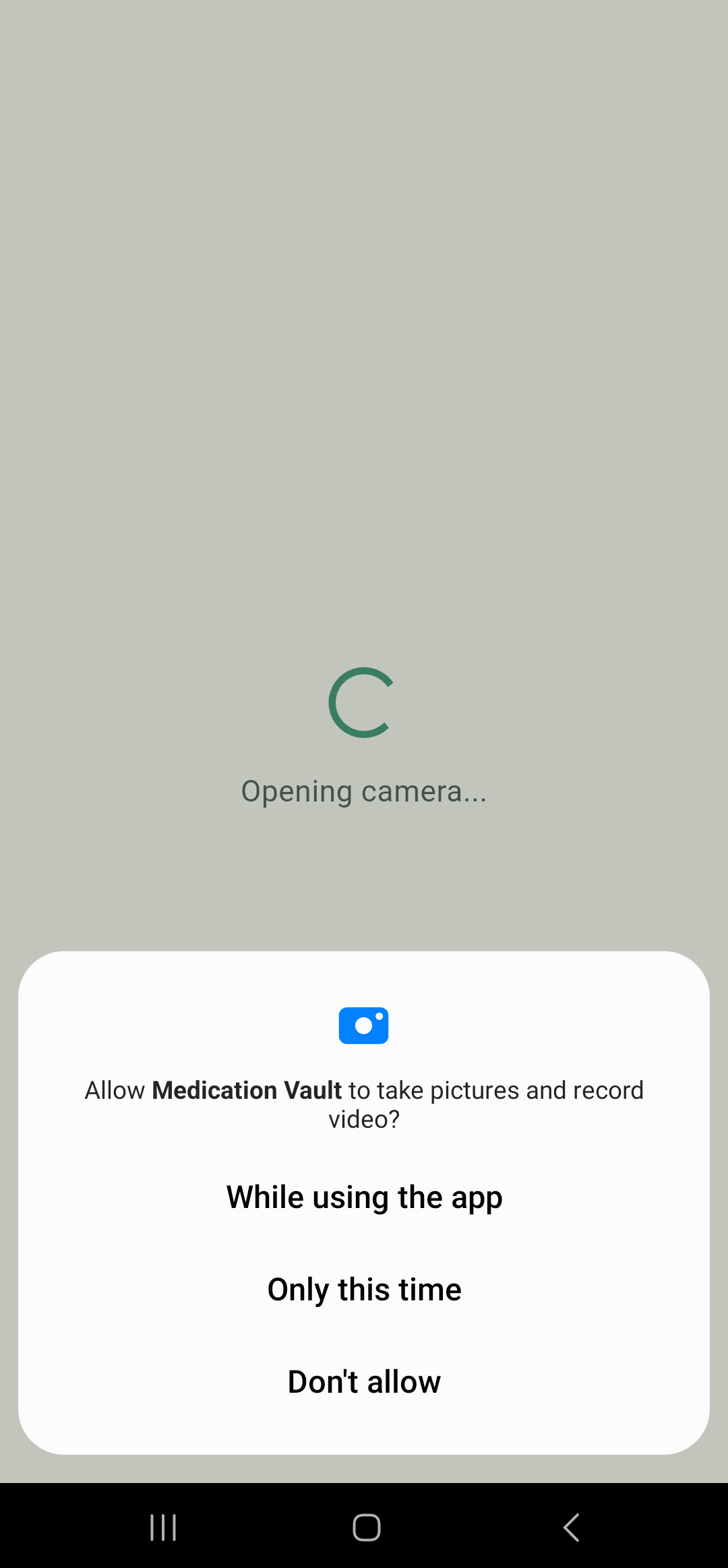
Tap Scan Label on the Add Medication sheet and the camera opens. Frame the printed panel — the one with the medication name, strength and dosing instructions on it — and take the picture.
Our AI system then reads the text and will fill out as much of the medicine's information as it can: the medication name, the strength and its unit, the form, the doses per day, and the quantity in the pack.
You'll then be taken to the Add Medication wizard where you can double check what the AI has filled in and correct or amend things if needed.
If it can't read anything useful, you get a plain "Couldn't read this label clearly" message with the option to try again in better light, or switch to entering it by hand.
Nothing about the label ever leaves your phone. The photo is read on-device and discarded once the text has been taken from it. It is never uploaded, never stored, and never sent anywhere.
Download our AI
When you upgrade to our Pro features, you will be asked to download our AI module. If you decline to do so, the phone is still able to scan, and try and read, your medication information, however it may not be as accurate. You can download the AI module at any time from the settings window.
It's important to check over the results of the scan in the Add Medication windows. Reading text from a photograph is never perfect — a smudged 5 can come back as an 8 — and this is exactly why the fields stay editable rather than being locked in.
Dose alarms and reminders
When a dose comes due, MedicationVault behaves like an alarm clock rather than an app, and that is the whole point of it.
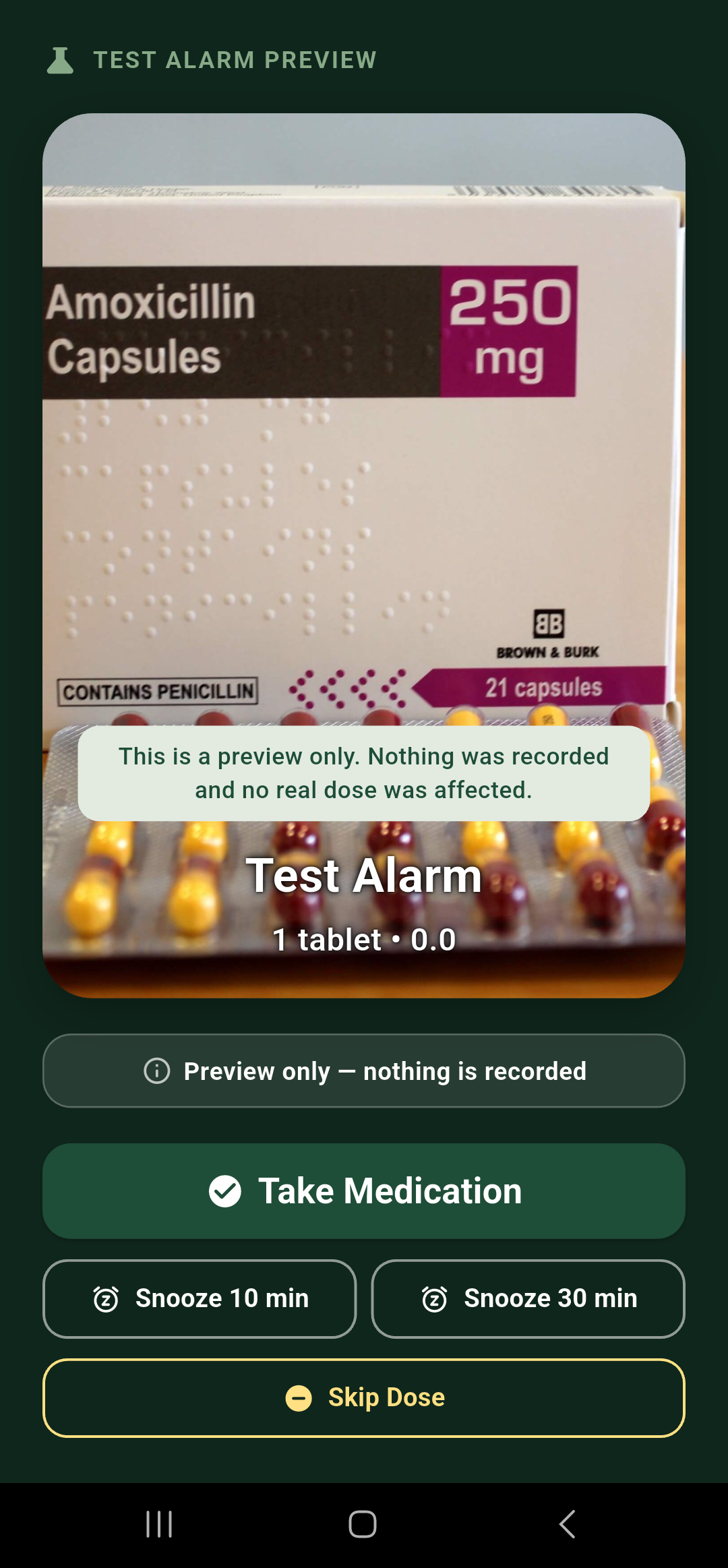
At the scheduled time this full-screen card takes over instantly — through a locked screen, through Silent and Do Not Disturb, and over whatever you happen to be doing. Your photo of the medication fills the background, and any notes you added ("take with food") appear on the card, so you have all of the information you need to hand.
Three actions are always available:
- Take Medication
- logs the dose, stops the alarm, and updates your streak.
- Snooze 10 min or Snooze 30 min
- silences it and sets it to fire again after the delay. The dose then appears on the Today screen at its new time.
- Skip Dose
- logs it as deliberately skipped.
The alarm keeps sounding and vibrating in a loop until you choose one of the three. The Android back button deliberately does nothing on this screen, so it can't be dismissed by accident. If two medications are due at once, each alarm is tracked separately and you can click an action for the first one, and then the second.
Snoozing has no limit. A dose can be pushed back as many times as you like and it will never quietly give up and mark itself missed — it will just keep coming back. However if you have caregiver alerts set up, your caregiver(s) will receive a text if you have snoozed your dose for more than 30 mins, so they know to check in with you and make sure everything is OK.
If you're not going to take it, Skip is the honest answer and keeps your history accurate.
Testing your setup
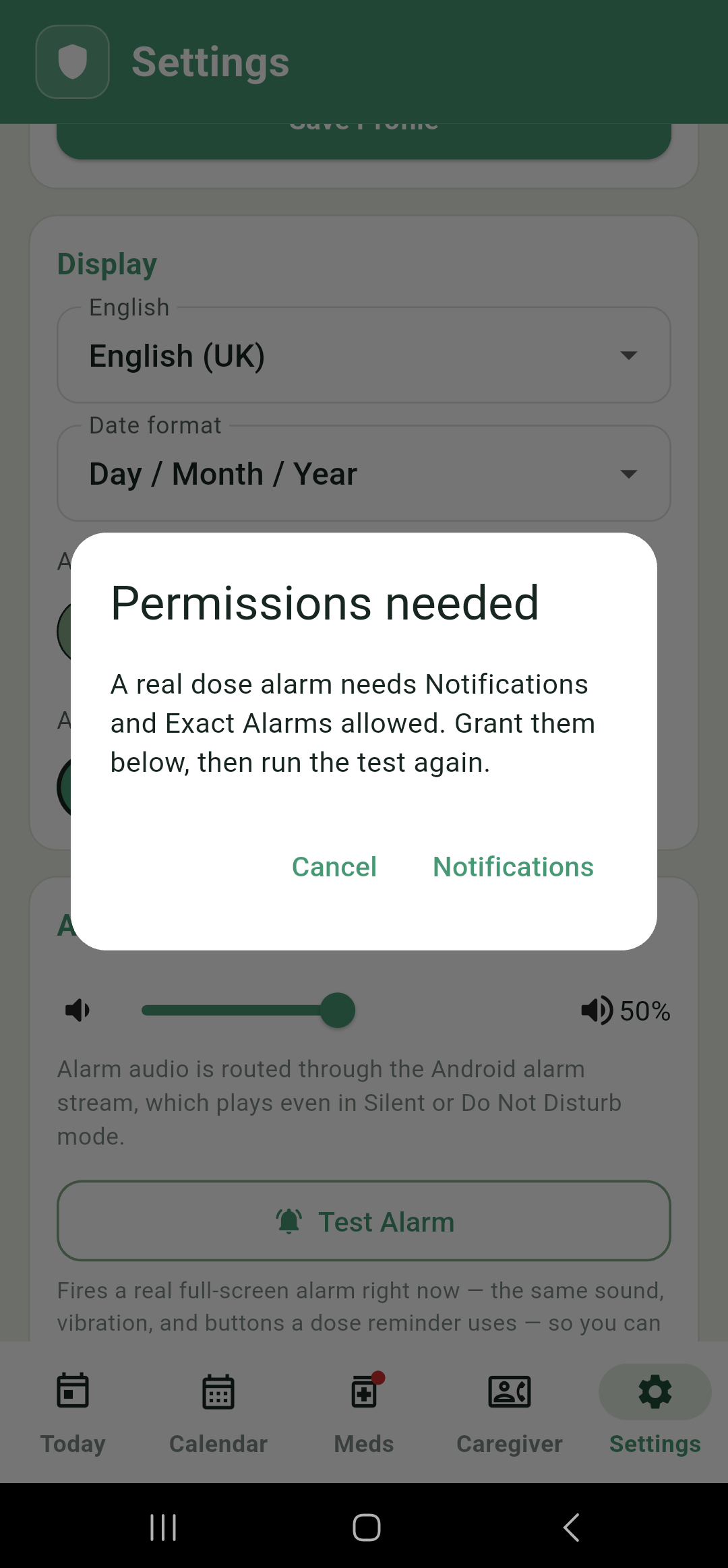
Settings › Alarm volume › Test Alarm fires the real thing right now: same screen, same sound, same vibration, same buttons. It's marked as a preview throughout and doesn't affect any medication data.
Do this once when you set the app up, and again if you ever change phones. It allows you to check your permissions are all set properly, and lets you hear the volume of the sound, which you can adjust until you are happy with it.
The test won't run unless all four permissions are granted. If Notifications or Exact alarms are the ones missing, it names them and offers a link straight to fixing them; if it's battery or Display over other apps, the dialog appears without a link, so put those right from Alarm permissions just below and try again.
Keeping reminders reliable
Two things are worth knowing about how the alarms are actually scheduled.
The app books real alarms with Android itself rather than running a timer in the background, so it doesn't need to be open for a reminder to fire, and alarms are re-registered automatically after you restart your phone.
However, most medications only have about sixty days of alarms booked at a time, topped up each time you open the app. The exception is anything set to particular days of the week, which Android re-arms by itself indefinitely. In practice this only matters if you were to go a couple of months without opening the app at all, but it's a good reason to let it see the light of day occasionally.
If one of the four permissions gets switched off — and some phones do this during their own housekeeping — the app posts a notification reading "Dose alarms may not work" with a list of what's missing. Reactivate your permissions to make sure you don't miss anything.
Caregiver alerts
An optional safety net: up to three people can be texted automatically if a dose is missed or a reminder goes unanswered. This is a Pro feature.
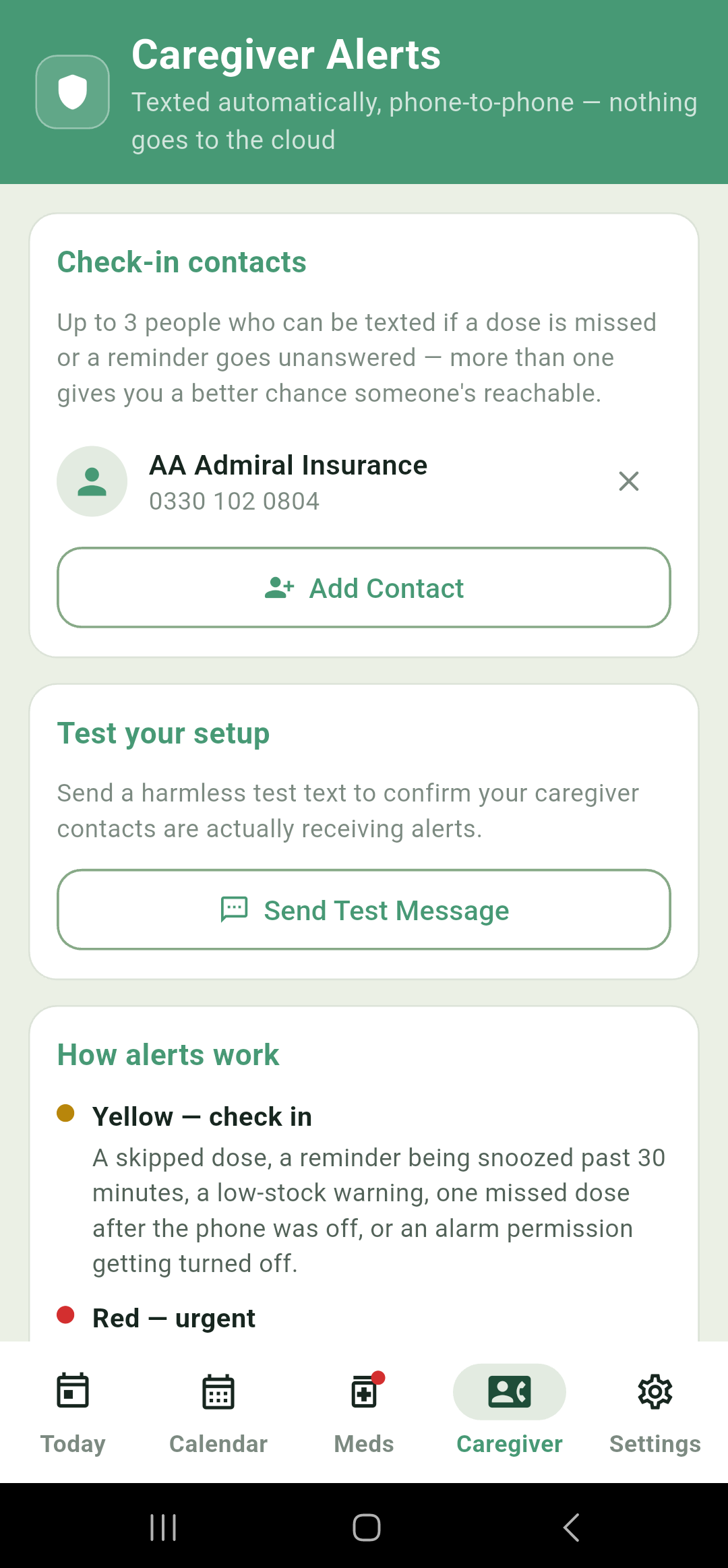
The messages go straight from your phone to theirs as ordinary text messages. There is no service in the middle, no app for them to install, and nothing stored anywhere but your own device.
Add contacts
Add Contact opens your phone's own contact list. Only numbers explicitly labelled Mobile or Work Mobile are offered, since a landline can't receive a text — if none of your contacts have one, the app says so and tells you to add the label in your Contacts app first. You'll be asked for Contacts permission to browse and SMS permission to send.
Three contacts is the maximum, and more than one is worth having: a single contact may be stuck in work, or unreachable.
Everyone you add is texted straight away to test the link and to tell them they have been added, so nobody gets a worrying message out of the blue with no context. They're also texted if you later remove them.
Test your setup
Send Test Message sends one harmless confirmation text to every contact you've added, so you can be sure the messages are really arriving before you rely on them. It asks you to confirm first, since it does send a real text.
How alerts work
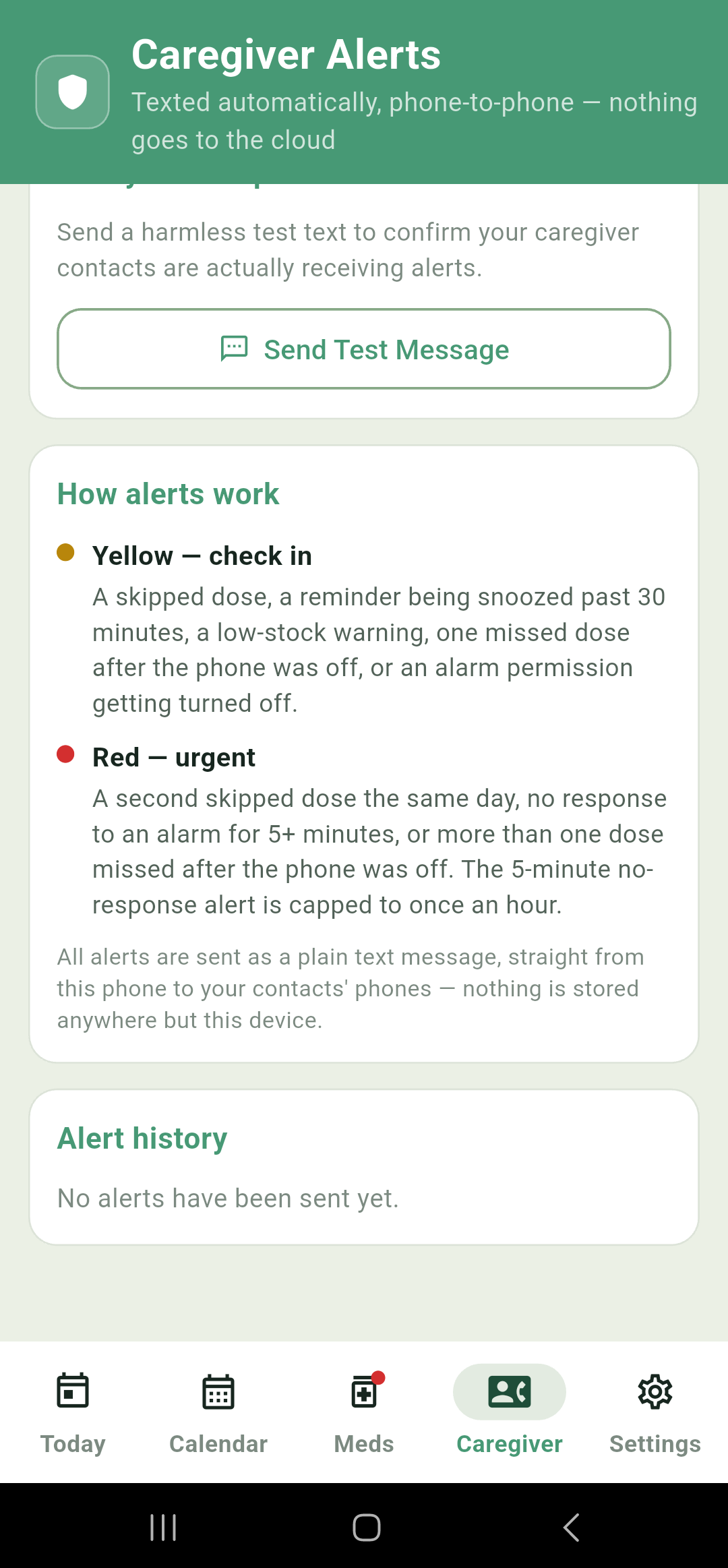
Not everything deserves the same level of urgency, so there are two tiers.
| Level | What triggers it |
|---|---|
| Yellow — check in | A skipped dose, a reminder snoozed past thirty minutes, a low-stock warning, one missed dose after the phone was off, or one of the alarm permissions being turned off. |
| Red — urgent | A second skipped dose the same day, no response to an alarm for five minutes or more, or more than one dose missed after the phone was off. |
The five-minute no-response alert is capped at one an hour, so a single difficult morning doesn't bury a caregiver in texts.
Alert history at the bottom of the screen logs every alert, what set it off, when, and who it went to, so you always know exactly what has and hasn't been said on your behalf.
Every alert is a plain text message sent by your own phone. There's no push service, no server and no account anywhere in the chain. Your data is completely yours and private. However this only works when your phone has signal to send a text.
The history records that the app tried to send a message, not that it arrived. If the phone had no signal, no SIM, or SMS permission had been revoked, the entry still appears, and it still appears if your phone successfully sends, but the recipient has no signal to receive. Send Test Message is the only way to be certain messages are getting through.
Settings
Everything that isn't a specific medication lives here, as a single column of cards.
Your profile and display
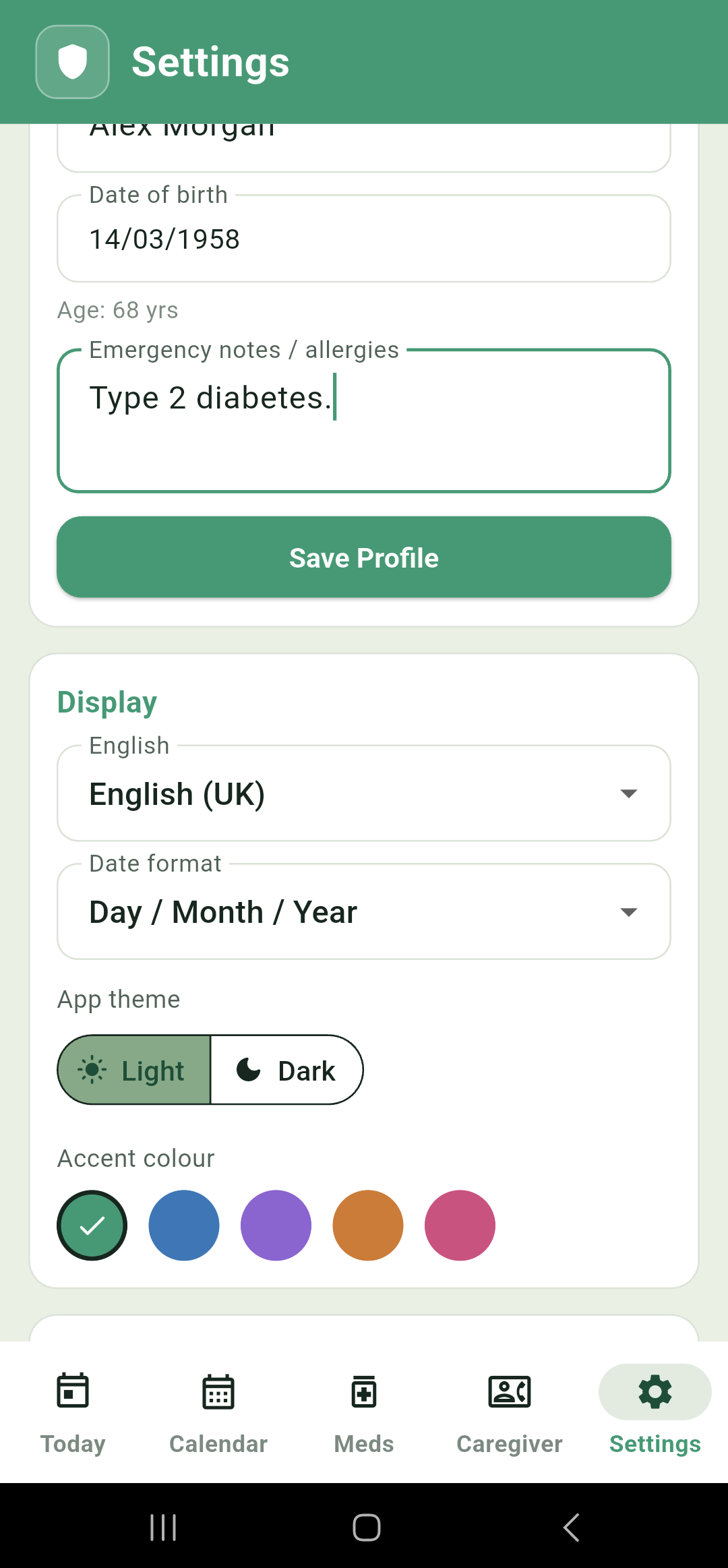
The same name, date of birth and emergency notes from setup. These are not saved as you type — tap Save Profile when you've finished, or your changes go nowhere.
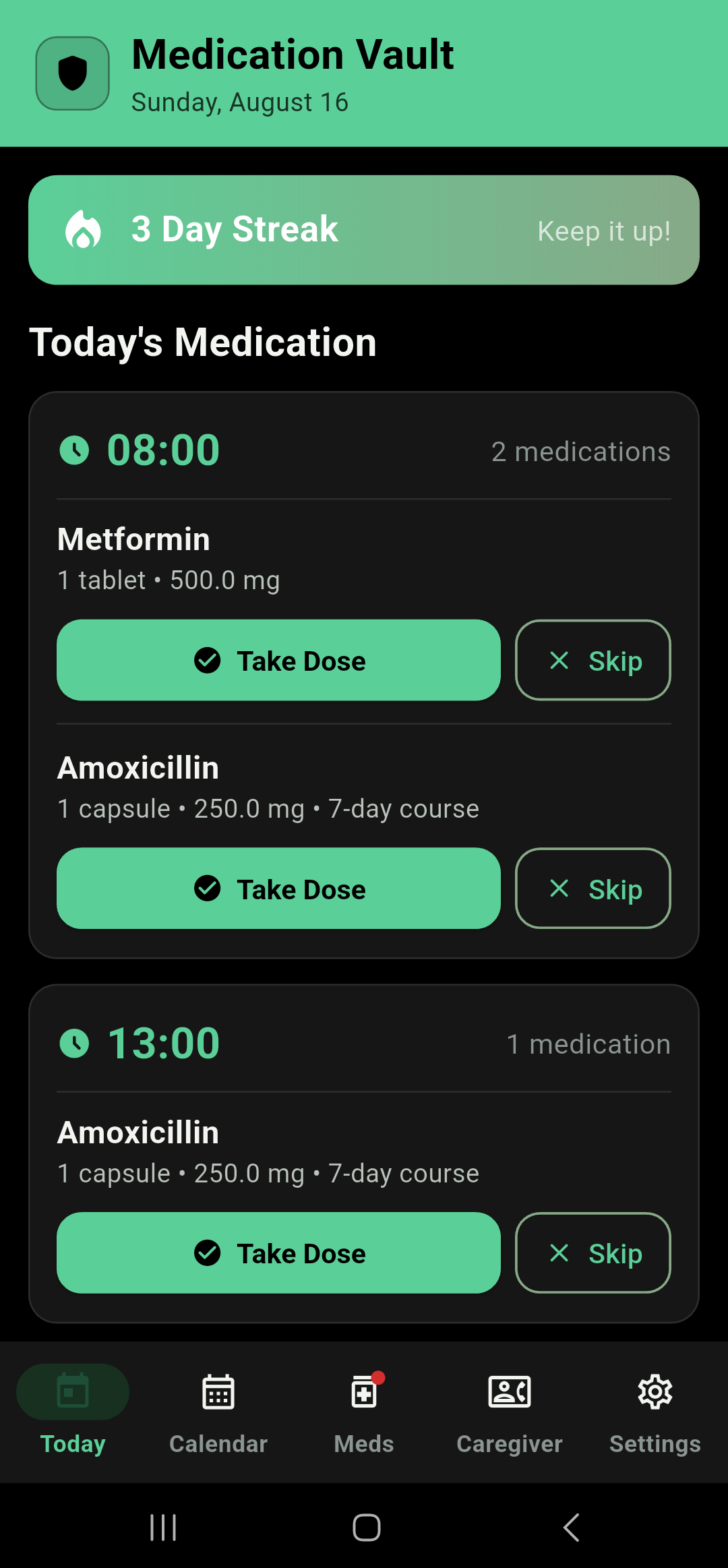
Display holds four things: which version of English the app uses, the date format, a Light/Dark theme switch, and an accent colour. Forest Green is the free one; Ocean Blue, Amethyst, Amber and Rose need Pro and carry a small padlock until then. The theme is a manual choice and doesn't follow your phone's own dark mode, so the app won't change appearance underneath you when the sun goes down.
Alarm volume and permissions
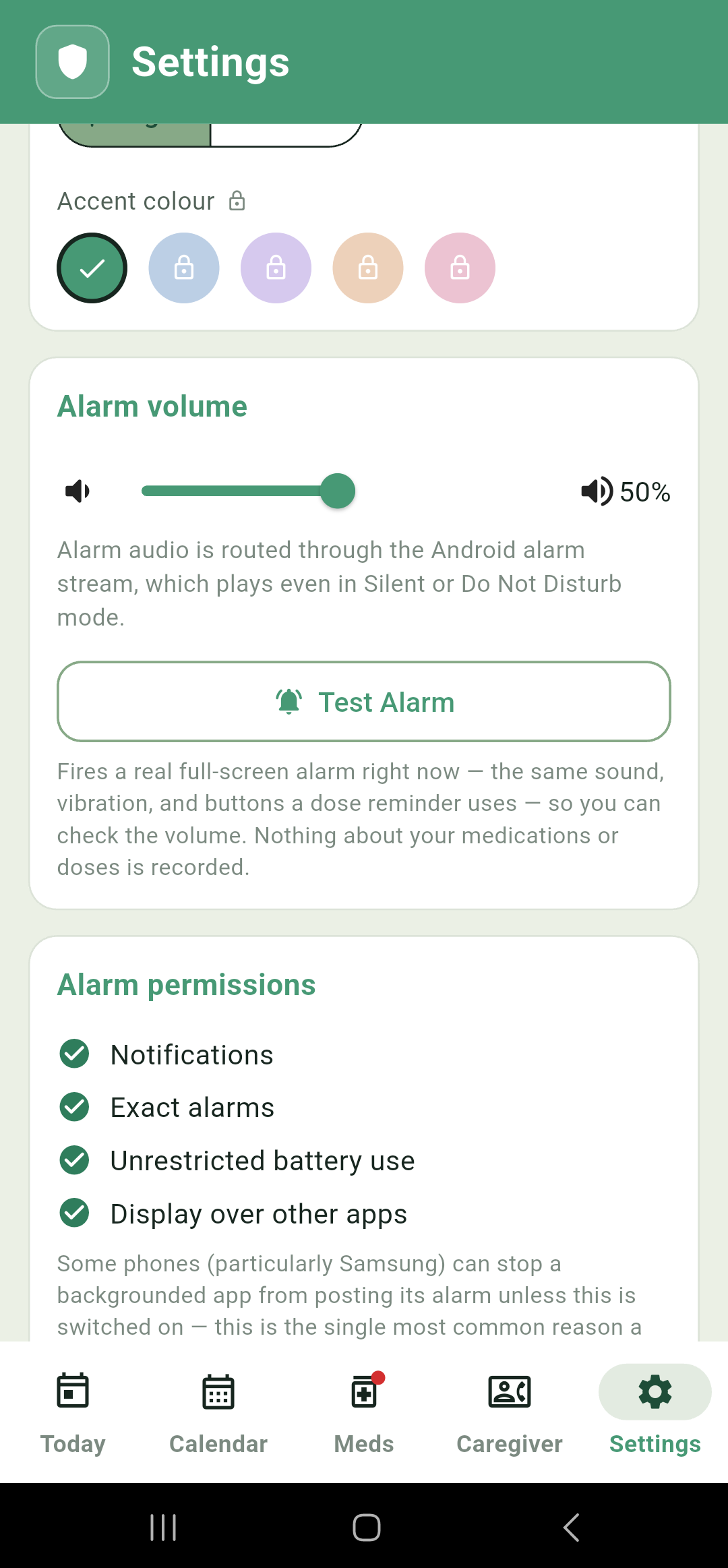
The volume slider sets how loud every dose alarm plays, and Test Alarm right underneath fires a real one so you can judge it. Both are covered in Dose alarms and reminders.
Alarm permissions repeats the four-item checklist from setup, but live: each row shows whether it's granted right now, with a one-tap Fix beside anything missing and a Re-check button at the bottom. Worth glancing at every so often, because some phones quietly revoke battery permissions during their own maintenance.
Subscription
Your Pro status, the subscribe button with the current Play Store price, and Restore purchase if you've paid before. Once you're subscribed this becomes a Manage subscription link into the Play Store. See Free and Pro.
AI-assisted label scanning
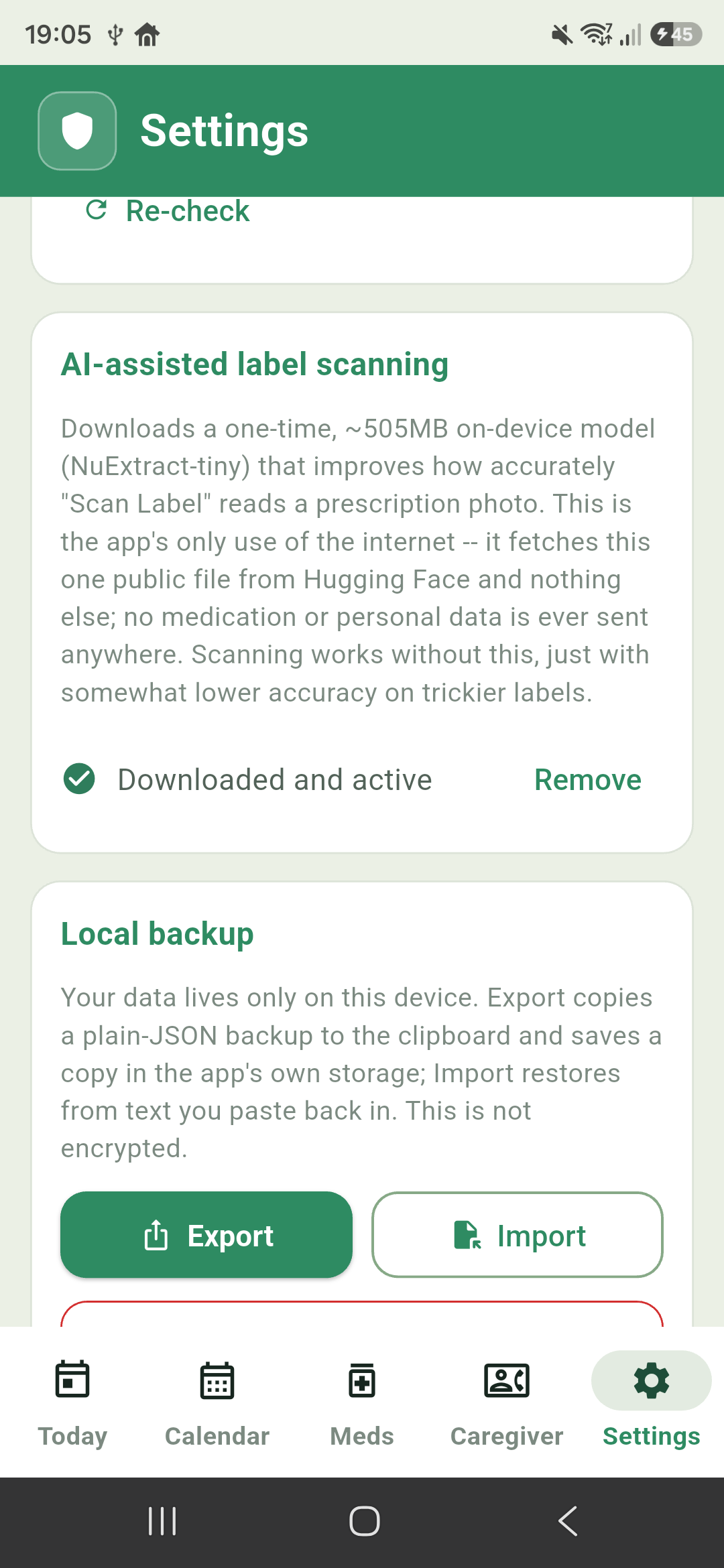
Manages the optional on-device model that improves label scanning. Before you download it the card reads Not downloaded with a Download button, showing a progress bar while it fetches. Once finished it reads Downloaded and active, with a Remove link to delete it and get the space back.
It's roughly a 505MB download, so it's worth doing on Wi-Fi. On the free app this card is replaced by a locked one, since both the model and label scanning itself are Pro. Full details are in Scan a label.
Backing up your data
Everything lives on this phone, which is exactly what keeps it private and also exactly what makes a backup worth setting up. There are two ways to do it, and they suit different people.
Local backup
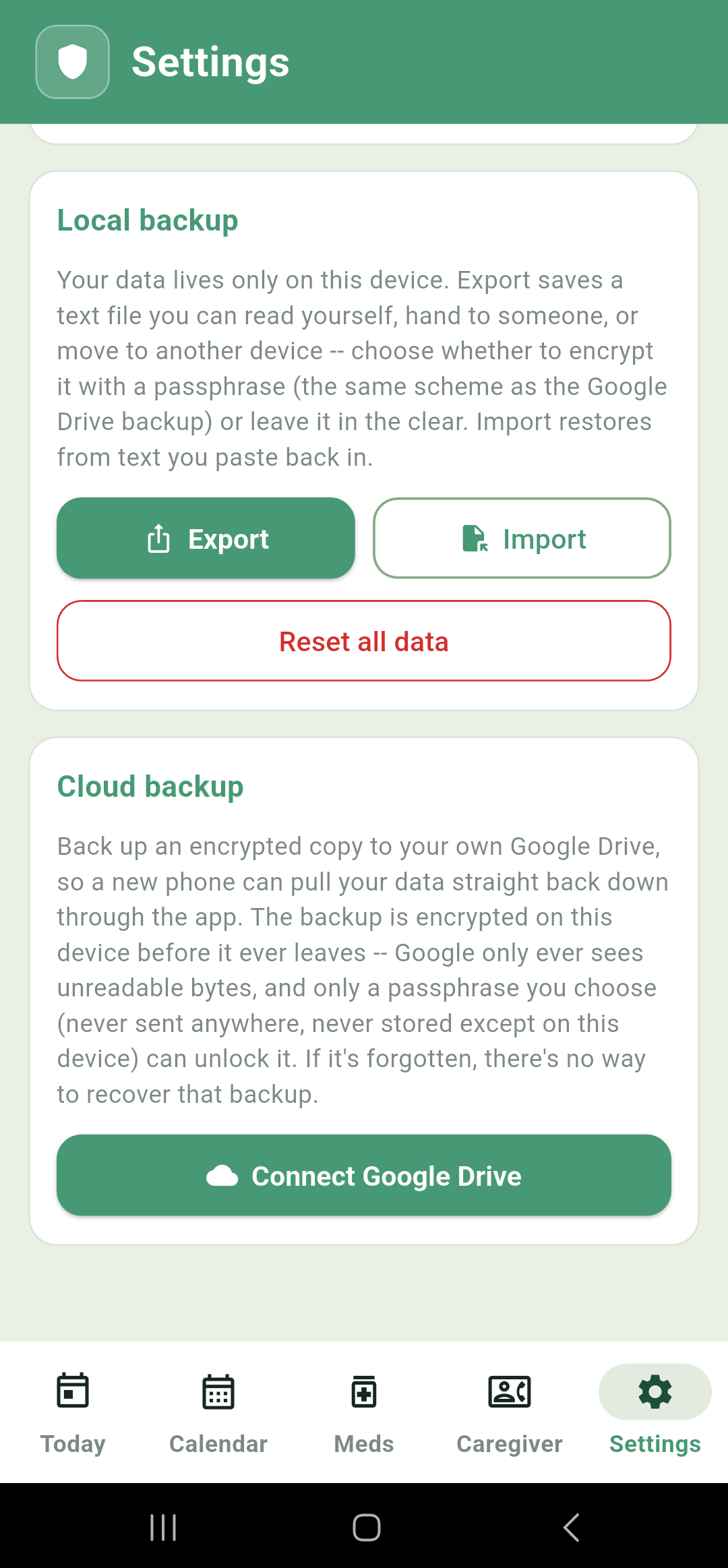
Export writes a backup file into your phone's Downloads folder, where you can find it with any file manager, email it to yourself, or copy it onto a computer. It asks first whether you want it as plain text, which anyone who opens the file can read, or encrypted, which uses the same passphrase as the Google Drive backup and is the one to use if you are moving your data to another device.
Import restores from text pasted back in, which is how you'd move to a new phone without using Google Drive.
Reset all data permanently deletes every medication, schedule and log on the device, along with your profile and caregiver contacts. It asks first, and there is no undo.
Cloud backup
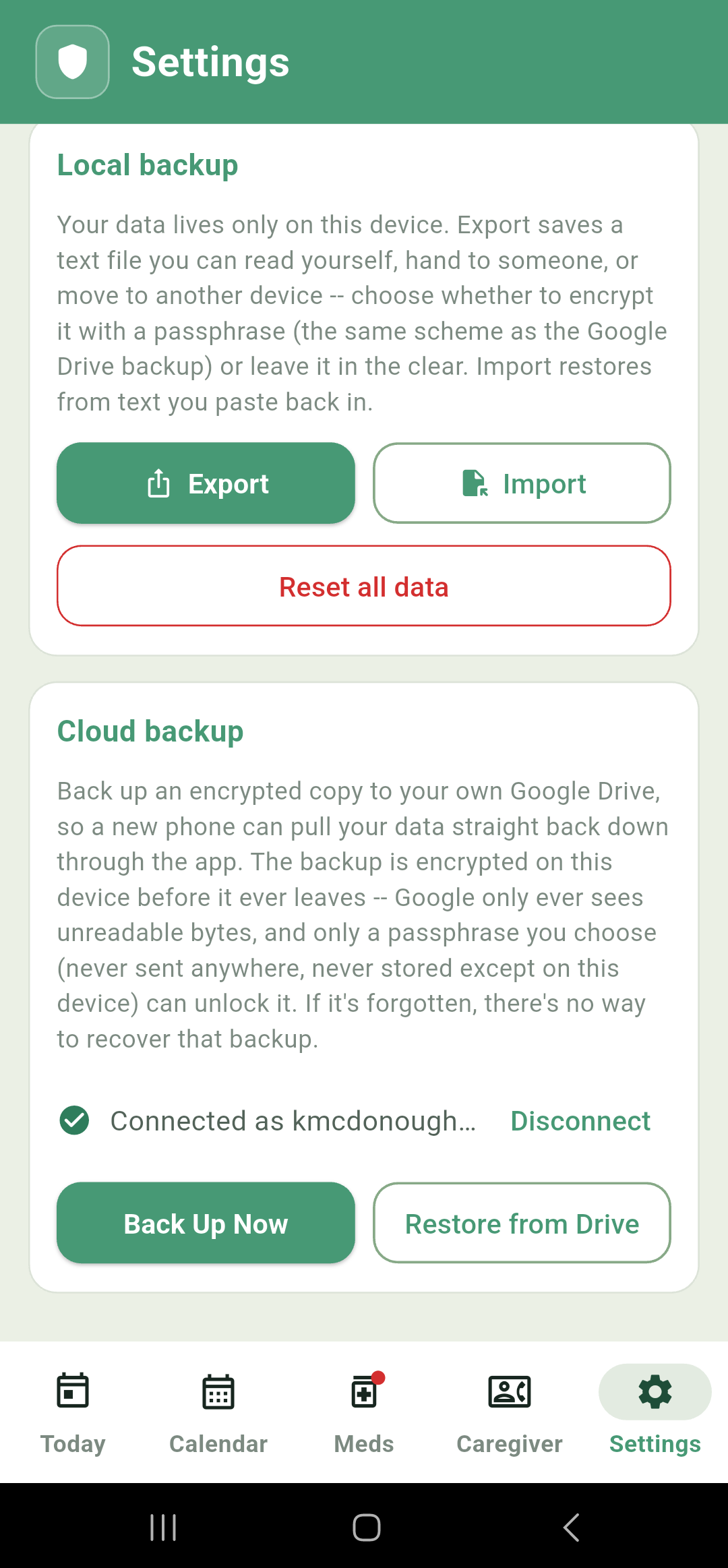
The easier option: an encrypted copy kept in your own Google Drive, so a lost or replaced phone can pull everything back through the app itself.
Connect Google Drive signs in with your Google account and asks for access to a private, hidden area of your Drive that doesn't appear in the normal file browser. There's nothing there to accidentally see, share or delete. Once connected you get Back Up Now, Restore from Drive, a Disconnect link, and the time of your last backup.
The first time you back up, the app asks you to set a backup passphrase, with a confirmation field to catch typos. Your backup is encrypted with it on this phone before anything is uploaded, so Google only ever receives unreadable bytes. The app remembers it on this device; a new phone will ask you for it once, when you restore.
There is no way to recover a forgotten passphrase. It's never sent anywhere and never stored anywhere but this device, which is precisely what makes the backup private — and also means a forgotten passphrase makes that backup permanently unreadable. Keep it somewhere safe. If it's genuinely lost, back up again with a new one.
What is and isn't included
Both kinds of backup carry the same things: your medications and their schedules, every dose you've logged, your refill history, your caregiver contacts and alert history, your profile, and your display preferences.
They do not include your medication photos so photos need retaking after restoring onto a different phone.
After restoring, close the app completely and reopen it. The data is saved straight away, but screens already open won't show it until the app restarts. The app tells you this, but it's easy to miss.
Troubleshooting
Most "nothing happened" reports trace back to one of Android's own background restrictions rather than a fault in the app. These are the checks worth running first.
Open Settings › Alarm permissions and confirm all four rows are granted. "Unrestricted battery use" and "Display over other apps" are the two most commonly switched off after the fact, particularly on Samsung phones, which layer their own restrictions on top of stock Android. Fix anything missing, then use Test Alarm just above to confirm alarms work at all.
Only about sixty days of alarms are booked ahead at a time, topped up whenever you open the app, so opening it will re-book them. Medications set to particular days of the week are the exception and aren't affected.
Check the volume slider in Settings › Alarm volume isn't at the bottom, and that the medication itself has Audible alarm switched on — that's in step 2 of its Edit wizard. Silent mode and Do Not Disturb are not the cause; alarm audio is designed to bypass both.
That's a limitation of reading text from a photograph rather than a risk to your data — nothing is saved until you step through and confirm the wizard, so just correct the field. Better light, a flatter label and a second attempt usually help. See Scan a label.
Either it's the wrong passphrase for that backup, or the backup belongs to a different Google account than the one currently connected. Check which account Settings › Cloud backup is showing. There's no way to recover a forgotten passphrase; back up again with a new one if it's truly gone.
Confirm their number is saved in your Contacts app labelled Mobile — other labels aren't offered. Then use Send Test Message in the Caregiver tab to check delivery directly. Remember that the alert history records attempts rather than confirmed deliveries, so a run of entries there doesn't prove anything arrived.
Frequently asked questions
No, with one narrow exception you control: Your Google Drive backup is sent to your own cloud accounr, but it is encrypted on this device before it's uploaded, so even that leaves as unreadable bytes. No medication, schedule or personal information is ever transmitted in a readable form by any feature in the app.
It's built around a single profile and one medication list. If you're managing medications for two people, a separate install on a separate phone for each is the cleanest approach rather than mixing both lists together.
The alarm keeps ringing until you deal with it. If it goes unanswered for five minutes or more and you have caregiver contacts set up, a red urgent alert is sent so they can check you are OK. The dose itself stays logged as nothing at all until you act on it, and shows as Missed in the Calendar once its time has passed.
Yes. Open the Calendar, find the day, tap the dose, and choose Mark as Taken. It works on any date.
Yes. Editing a medication only changes what happens from now on. It's history and everything already logged stays exactly as it was.
No, by design. It's a plain manual switch in Settings, so the app's appearance doesn't change on you when your phone's own schedule kicks in.
Nothing is deleted. Your three oldest medications carry on reminding you as normal, and the rest are paused but stay in the Meds list, ready to come back if you resubscribe. Caregiver contacts are kept the same way; they simply stop receiving alerts but will start again when the subscription is renewed.
Glossary
- Adherence
- Whether doses are actually taken as scheduled. The streak on the Today screen is a simple measure of it over time.
- Course
- A medication's overall run, either a fixed length such as a seven-day antibiotic course, or Ongoing with no end date.
- Exact alarm
- An Android permission that lets a reminder fire at the precise minute it's scheduled for, rather than whenever the system next feels like waking up.
- Grace period
- The three days Pro keeps working after the Play Store fails to confirm a payment, so you have time to sort it out.
- Habit anchor
- A dose time chosen by naming a point in your day (with breakfast, at bedtime) rather than typing a clock time. It sets a fixed time behind the scenes.
- Low stock threshold
- The remaining-supply number at which a medication's bar turns red and the badge appears on the Meds tab.
- On/Off cycle
- A pattern of alternating runs of days taking a medication and days not, such as twenty-one on and seven off.
- Recurrence
- How often a medication is due: a fixed schedule, particular days of the week, or an on/off cycle.
- Snooze
- Pushing an alarm back by ten or thirty minutes instead of taking or skipping the dose. It reappears, and re-alerts, at the new time.